How to Watch IPTV on Apple TV 4K: Complete tvOS Setup, App Comparison & Optimization Guide (2026)
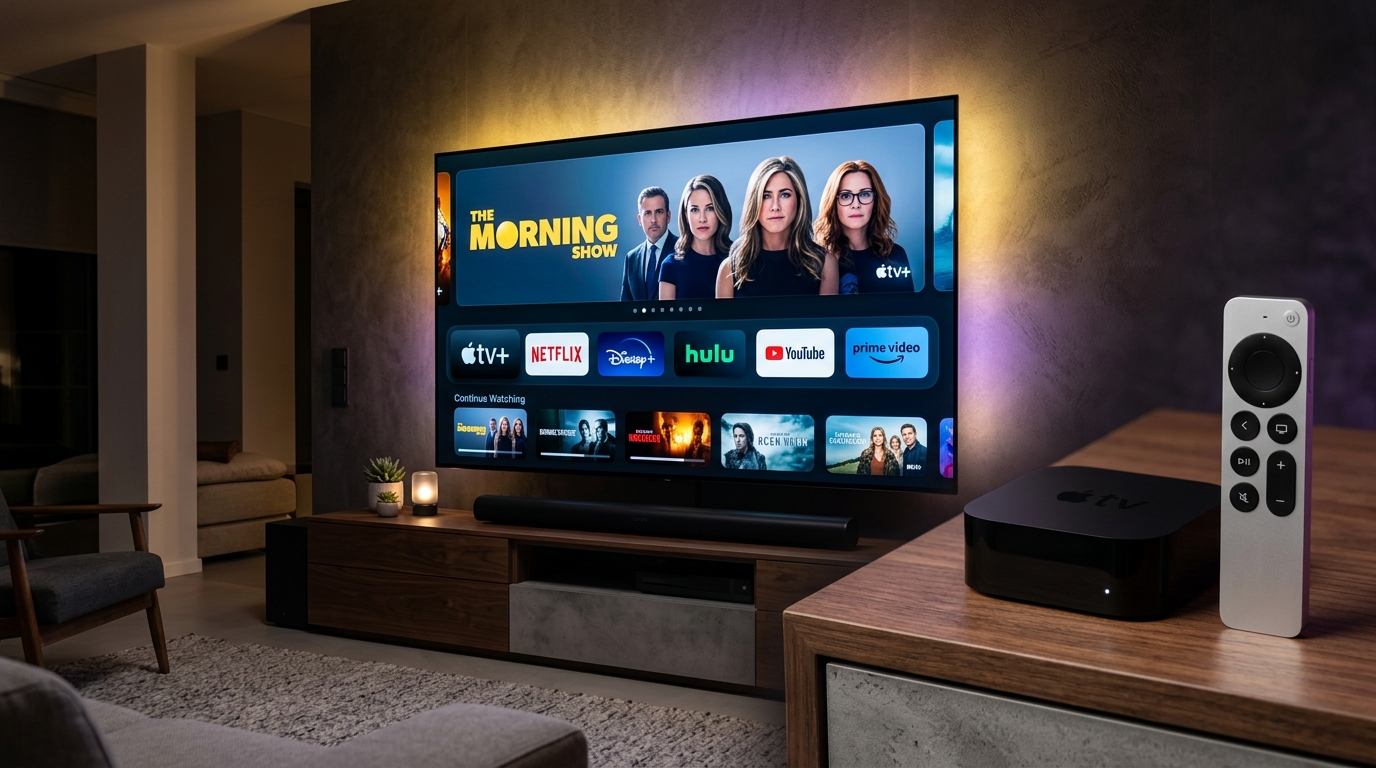
Among the vast array of consumer streaming hardware available on the market today, the Apple TV 4K stands in a category of its own. While budget streaming dongles frequently compromise on memory, thermal management, and graphics processing to achieve low retail price points, Apple engineered the Apple TV 4K as a high-performance multimedia computer disguised as a living room entertainment box.
Powered by desktop-grade Apple Silicon (such as the A12 Bionic and A15 Bionic chipsets), Apple TV 4K offers unmatched raw computing power, strict color accuracy, dedicated hardware video decoders, and a silky-smooth 60 FPS user interface rendered natively via Apple's low-level Metal graphics API. For discerning television viewers, pairing an Apple TV 4K with a high-speed, anti-freeze IPTV subscription unlocks an experience that not only matches, but frequently surpasses, high-end traditional cable and satellite set-top boxes.
However, because Apple maintains a strictly sandboxed operating system environment in tvOS, configuring IPTV on Apple TV differs fundamentally from sideloading APK files on an Amazon Firestick or Android TV. There is no sideloading via third-party web browsers; every application must be vetted and installed directly from the official Apple App Store.
This comprehensive technical guide details the entire ecosystem of IPTV on Apple TV 4K. We evaluate the finest tvOS player applications, provide step-by-step configuration walkthroughs using modern Xtream Codes API credentials, and guide you through critical tvOS display calibration (such as Match Frame Rate and Match Dynamic Range) to achieve broadcast-grade television in your home.
1. Why Apple TV 4K is the Ultimate IPTV Streaming Terminal
To appreciate why Apple TV 4K delivers such a superior streaming experience, one must examine the underlying hardware silicon and display architecture that separates it from budget alternatives.
+--------------------------------------------------------------------------+
| Hardware Architecture Comparison                                         |
|                                                                          |
| Budget Firestick / Android Stick: Mobile SoC, 1.5 GB RAM, Thermal Limits |
| -> Result: Occasional dropped frames, thermal throttling after 2 hours    |
|--------------------------------------------------------------------------|
| Apple TV 4K (3rd Gen): A15 Bionic 6-Core CPU, 4 GB Unified RAM, Metal GPU|
| -> Result: Instant 60 FPS rendering, zero thermal throttling, 4K HDR     |
+--------------------------------------------------------------------------+
1. Raw Processing Power and Memory Bandwidth
Budget streaming sticks operate with 1.5 GB to 2 GB of low-bandwidth system RAM shared between the Android operating system and video buffers. When parsing extensive channel lineups containing 20,000+ entries, these devices often stutter or run out of memory.
- The Apple TV 4K features 4 GB of high-speed unified LPDDR4X RAM and desktop-class CPU cores.
- It can ingest, index, and cache massive electronic program guide (EPG) databases in seconds without causing interface lag.
2. Apple Metal Graphics API and 60 FPS UI Rendering
In tvOS, user interfaces are rendered using Apple's proprietary Metal graphics framework:
- Every channel guide scroll, poster animation, and menu transition occurs at a locked 60 Frames Per Second.
- Scrolling through hundreds of channels in apps like iPlayTV or UHF Player feels as instantaneous and responsive as scrolling through photos on an iPhone.
3. Precision Color Management and Dynamic Range Processing
Many streaming devices force all output signals into a single static display profile (such as forced HDR10 or Dolby Vision), resulting in artificial oversaturation or washed-out contrast when viewing standard dynamic range (SDR) live television.
- Apple TV 4K features native system-level Match Dynamic Range and Match Frame Rate capabilities.
- Standard SDR broadcasts output pure, accurate Rec. 709 color, while 4K HDR sports feeds automatically trigger HDR10 or Dolby Vision tone mapping on your television display.
2. Navigating the App Store Ecosystem: No Sideloading Required
On Android TV or Amazon Firestick devices, users routinely download third-party browser tools like Downloader to sideload APK packages from unverified websites. On Apple TV 4K, Apple's tvOS operates under a strict security sandbox:
[tvOS Security Boundary]
         │
         ▼
[Official Apple App Store] ──► All Apps Signed, Sandboxed & Code-Verified
         │
         ▼
[Native Performance & Zero Malware Risk on Your Home Network]
The Advantages of the Sandboxed App Store
- Guaranteed Security: Every application on the tvOS App Store undergoes rigorous static and dynamic analysis by Apple security teams. You never need to worry about malicious background crypto-miners or spyware packaged inside unauthorized APK files.
- Automated Background Updates: tvOS updates player applications automatically, ensuring you always enjoy the latest codec optimizations and interface enhancements.
- Family Sharing: A single purchase of a premium player on your Apple ID can be shared across all Apple TV units, iPads, and iPhones in your household via Apple Family Sharing.
3. In-Depth Comparison of the Top Apple TV IPTV Players
Because TiviMate is not available on tvOS, Apple TV users choose from a specialized selection of dedicated tvOS players. Below is the technical breakdown of the four leading applications:
+--------------------------------------------------------------------------+
| Top Apple tvOS IPTV Players                                              |
|                                                                          |
| 1. iPlayTV     : The Veteran King (Metal Engine, Cable-like Grid EPG)    |
| 2. UHF Player  : The Modern Design Master (SwiftUI, iCloud Multi-Sync)   |
| 3. Smarters Pro: The Universal Choice (Familiar Grid, Dual Codec Support)|
| 4. GSE Smart   : The Advanced Configurator (M3U & JSON Parsing Powerhouse)|
+--------------------------------------------------------------------------+
1. iPlayTV (The Best Set-Top Box Experience on tvOS)
iPlayTV is widely considered the gold standard for pure live television viewing on Apple TV:
- Cable-Style EPG Timeline: Displays a rich, multi-channel electronic program guide grid with full show summaries and channel preview windows.
- Instant Channel Zapping: Leverages Apple's AVPlayer framework to lock onto live MPEG-TS and HLS streams in under 1.0 second.
- Multi-Playlist Aggregation: Manage multiple IPTV subscriptions and local M3U playlists within a unified channel guide.
- Pricing: Available as a one-time purchase on the App Store (no recurring monthly fees).
2. UHF Player (The Luxury Design Benchmark)
UHF Player is the most visually stunning IPTV application developed for the Apple ecosystem:
- Seamless iCloud Synchronization: Configure your VIPSATV subscription once on your Mac or iPhone, and your entire channel list, custom groups, and favorites synchronize instantly to your Apple TV 4K.
- Modern Apple Design Language: Utilizes SwiftUI glassmorphism, fluid physics-based gestures, and dynamic high-resolution movie poster scraping.
- Picture-in-Picture (PiP): Supports native tvOS Picture-in-Picture, allowing you to monitor a live basketball game in the corner of your screen while navigating other tvOS apps.
3. IPTV Smarters Pro (tvOS Edition)
For households that already use Smarters on other televisions:
- Familiar Tile Interface: Separate tiles for Live TV, Movies, Series, and Catch-Up.
- Xtream Codes API Integration: Connects seamlessly using Server URL, Username, and Password.
- Free App Store Download: Accessible directly from the tvOS App Store.
4. GSE Smart IPTV
A veteran player with extensive playlist format support:
- Exceptional compatibility with non-standard transport streams, custom user-agent headers, and tokenized stream URLs.
- Advanced internal audio equalizer and manual subtitle synchronization settings.
4. Critical tvOS Display Calibration: Eliminating Judder and Color Washout
The single most important step after installing your IPTV player on Apple TV 4K is calibrating the system-level video output settings. By default, Apple TV outputs a continuous 4K 60Hz Dolby Vision or HDR signal to ensure vibrant menus. However, when streaming standard dynamic range (SDR) television broadcasts, this default causes color oversaturation and motion judder.
DEFAULT tvOS OUTPUT (UNOPTIMIZED):
[SDR Live Broadcast] ──► [Apple TV Forces Dolby Vision 60Hz] ──► Washed Contrast & 3:2 Judder

CALIBRATED tvOS OUTPUT (RECOMMENDED):
[SDR Live Broadcast] ──► [4K SDR Default + Match Content ON] ──► Pure Rec.709 Color & 100% Fluid Motion!
Step-by-Step tvOS Display Calibration
Follow this exact sequence in your Apple TV settings:
- Open Settings: From the tvOS home screen, open Settings -> Video and Audio.
- Set Format to 4K SDR: Highlight Format and select 4K SDR (60Hz or 59.94Hz). Setting SDR as the default ensures that television menus and 95% of broadcast channels display accurate Rec. 709 color temperatures without artificial tone-mapping.
- Set HDMI Output to YCbCr: Under HDMI Output, select YCbCr rather than RGB High/Low for optimal broadcast video compatibility.
- Set Chroma to 4:4:4: If using a high-speed 18 Gbps or 48 Gbps HDMI 2.1 cable, set Chroma to 4:4:4 for razor-sharp text and graphics rendering.
- Open "Match Content": Navigate to Match Content and enable both:
- Match Dynamic Range: ON (When a genuine 4K HDR or Dolby Vision stream is detected, Apple TV will automatically trigger your TV's HDR mode, reverting to SDR when the broadcast ends).
- Match Frame Rate: ON (When playing a European 50 FPS sports channel, Apple TV automatically switches panel refresh rates to 50.00 Hz, eliminating micro-judder).
5. Step-by-Step Guide: Setting Up iPlayTV on Apple TV 4K
Follow this configuration procedure to connect your VIPSATV subscription credentials to iPlayTV:
- Download iPlayTV: Open the App Store on your Apple TV, search for
iPlayTV, and install the application. - Launch the Application: Click Add Playlist on the initial welcome screen.
- Select "Xtream Codes API": Choose the Xtream Codes login option.
- Enter Your Account Credentials:
- Playlist Name: Enter
VIPSATV Premier. - Server URL: Enter your dedicated server portal URL (e.g.,
http://line.vipsatv.pro:8080). - Username: Enter your assigned subscription username.
- Password: Enter your secure subscription password.
- Playlist Name: Enter
- Configure EPG & VOD: Ensure the toggle for Include VOD is active.
- Save and Ingest: Click Save. iPlayTV will connect to the VIPSATV Anycast server cluster, download the channel directory, and index program schedules.
- Set Buffer Cache: In iPlayTV settings, open Player Settings and set the buffer to 1.5 Seconds for immediate channel switching.
6. Step-by-Step Guide: Setting Up UHF Player with iCloud Synchronization
UHF Player offers the most seamless multi-device setup experience across the Apple ecosystem:
[1. Open UHF on iPhone / Mac] ──► Add VIPSATV Xtream Codes Credentials
                                             │
                                             ▼
                             [iCloud CloudKit Background Sync]
                                             │
                                             ▼
[2. Open UHF on Apple TV 4K]  ──► ALL Channels, Groups & Favorites Ready!
- Install UHF Player: Download UHF Player from the App Store on your iPhone, iPad, Mac, or Apple TV 4K.
- Add Subscription on iPhone or Mac (Easiest Method):
- Open UHF on your iPhone.
- Tap + (Add Playlist) and select Xtream Codes.
- Input your Server URL, Username, and Password.
- Save the playlist and allow UHF to perform its initial sync.
- Launch UHF on Apple TV 4K:
- Launch UHF on your Apple TV.
- Ensure your Apple TV is signed into the same Apple ID.
- Your complete VIPSATV channel lineup and custom favorite lists will appear automatically via iCloud!
- Enable Picture-in-Picture: While streaming a channel, swipe down on the Siri Remote and click the PiP Icon to minimize the feed into the corner of your screen.
7. Audio Calibration: Spatial Audio, Dolby Atmos, and Passthrough
Apple TV 4K is famous for its sophisticated audio engine, capable of outputting uncompressed multi-channel LPCM, Dolby Atmos, and Apple Spatial Audio.
[Broadcast Audio: AC-3 5.1 / AAC] ──► [Apple TV Internal Audio DSP] ──► [Uncompressed 24-bit Multi-Channel LPCM]
                                                                                        │
                                                                                        ▼
                                                                           [AV Receiver / HomePod Stereo]
Understanding Apple's Audio Engine
Unlike streaming dongles that pass compressed audio bitstreams directly to a soundbar, Apple TV 4K decodes all incoming audio streams internally into uncompressed Linear PCM (LPCM) before transmitting them over HDMI.
- Zero Audio Quality Loss: LPCM preserves 100% of original broadcast dynamic range without introducing compression artifacts.
- Dolby Atmos Compatibility: If an IPTV broadcast carries an E-AC-3 Dolby Atmos soundtrack, Apple TV renders spatial audio height channels flawlessly.
- Apple HomePod Integration: If you use two HomePod speakers configured as a home theater pair, Apple TV automatically renders a wide, cinematic soundstage with crystal-clear dialogue clarity.
8. Siri Remote Navigation Ergonomics for Live Television
The Apple TV Siri Remote (2nd and 3rd Generation with aluminum enclosure) features a touch-sensitive clickpad that provides exceptional control over live IPTV streams:
Essential Navigation Gestures
- Circular Jog-Wheel Scrubbing: When watching Catch-Up TV or on-demand movies, pause playback and run your thumb in a circular motion around the outer ring of the clickpad to scrub through video with frame-by-frame precision.
- Swipe Down for Quick Settings: Swiping down while watching live television reveals stream audio tracks, subtitle selections, and video aspect ratio toggles.
- Swipe Right for Channel List Overlay: In iPlayTV and UHF, swiping right across the clickpad brings up an unobtrusive channel list on the side of the screen, allowing you to browse other channels without interrupting current playback.
- TV/Control Center Button Long-Press: Brings up the quick audio output switcher to route broadcast sound to AirPods or bedroom HomePods instantly.
9. Network Architecture: Gigabit Ethernet vs. Wi-Fi 6 on Apple TV 4K
To achieve true zero-buffering 4K streaming, your network connection must deliver uninterrupted throughput:
| Network Connection | Throughput Stability | Latency / Ping | Jitter | Recommendation |
|---|---|---|---|---|
| Gigabit Ethernet (Cat6) | 100% Deterministic (Up to 940 Mbps) | Sub-2ms local | 0ms | Gold Standard (Best for 4K Sports) |
| Wi-Fi 6 (5 GHz Band) | High (300 - 650 Mbps) | 4ms - 12ms | Low | Excellent (Near Router) |
| Wi-Fi (2.4 GHz Band) | Unstable (20 - 50 Mbps) | 25ms - 80ms | High | Not Recommended |
Why Wired Ethernet is King
The Apple TV 4K (Wi-Fi + Ethernet model) features a dedicated Gigabit Ethernet controller connected directly to system PCIe lanes. Connecting your Apple TV via Ethernet guarantees that high-bitrate 4K sports streams (25+ Mbps) never drop packets during peak evening hours.
10. Troubleshooting Common tvOS IPTV Glitches
1. App Store Search Cannot Find IPTV Smarters Pro
- Root Cause: Due to periodic developer licensing updates, Smarters Pro occasionally changes its App Store listing title (such as Smarters Player Lite).
- Resolution: Search for
Smarters Player LiteoriPlayTVon the tvOS App Store. Both applications connect to VIPSATV Xtream Codes servers identically.
2. Screen Blinks Black for 1 Second When Changing Channels
- Root Cause: This is not a bug. It is your television panel resynchronizing its HDMI clock timing because Match Frame Rate has switched refresh rates (e.g., from 60 Hz to European 50 Hz).
- Resolution: This 1-second handshake guarantees 100% judder-free motion. If you prefer instant switching over frame rate matching, disable Match Frame Rate in tvOS settings.
3. Audio Plays But Video is a Black Screen
- Root Cause: A temporary hardware decoder handshake conflict with a specific HEVC broadcast profile.
- Resolution: Force-close the player application by double-clicking the TV button on the Siri Remote, swiping up on the app card, and relaunching the channel. For exhaustive solutions, consult our black screen troubleshooting guide.
11. Apple TV Hardware Generation Comparison: Which Model is Best for IPTV?
Before choosing player applications and configuring display settings, it helps to understand the hardware capabilities of the various Apple TV generations available on the market today:
+--------------------------------------------------------------------------+
| Apple TV Generation Performance Matrix for IPTV                          |
|                                                                          |
| 1. Apple TV 4K (3rd Gen - 2022) : A15 Bionic │ 4GB RAM │ HDR10+ / Dolby  |
| 2. Apple TV 4K (2nd Gen - 2021) : A12 Bionic │ 3GB RAM │ HDMI 2.1 ARC    |
| 3. Apple TV 4K (1st Gen - 2017) : A10X Fusion│ 3GB RAM │ 4K HDR10        |
| 4. Apple TV HD (4th Gen - 2015) : Apple A8   │ 2GB RAM │ 1080p Only (Old)|
+--------------------------------------------------------------------------+
1. Apple TV 4K (3rd Generation - 2022) — The Gold Standard
Powered by the A15 Bionic processor (the same silicon found in the iPhone 13 Pro), the 3rd generation Apple TV 4K is the undisputed champion of live television streaming:
- Features 4 GB of unified high-speed RAM, allowing it to ingest and parse massive 30,000-channel playlists and seven-day EPG databases in less than 3 seconds.
- Includes hardware decoding support for HDR10+, Dolby Vision, and AV1 video streams.
- The 128 GB model includes dedicated Gigabit Ethernet and Thread smart-home networking.
2. Apple TV 4K (2nd Generation - 2021)
Driven by the A12 Bionic chipset, this model introduced the redesigned aluminum Siri Remote:
- Offers excellent 4K 60FPS video playback across all major codecs including HEVC Main 10.
- Supports high-framerate HDR output and HDMI 2.1 eARC audio return.
3. Apple TV HD (Legacy 1080p Model)
The older Apple TV HD runs on an aging Apple A8 processor manufactured in 2014. While it can still stream 1080p H.264 feeds, it lacks hardware acceleration for HEVC 4K streams and can experience UI slowdowns when rendering complex EPG grids. For serious cord-cutters, upgrading to an Apple TV 4K is strongly recommended.
12. Advanced tvOS DNS Configuration: Bypassing ISP Throttling
If your residential internet provider engages in selective DNS tampering or video traffic shaping, you can configure custom Anycast DNS addresses directly inside tvOS settings without needing third-party proxy tools:
[tvOS Settings] ──► [Network] ──► [Wi-Fi or Ethernet] ──► [Configure DNS]
                                                                │
                                                                ▼
                                                [Enter 1.1.1.1 (Cloudflare)]
Step-by-Step tvOS DNS Setup
- From the Apple TV home screen, open Settings -> Network.
- Select your active network connection (Ethernet or your connected Wi-Fi SSID).
- Scroll down to Configure DNS (which is set to Automatic by default).
- Select Manual.
- Input the primary IP address for Cloudflare DNS:
001.001.001.001(or Google DNS:008.008.008.008). - Click Done to commit the changes.
- Restart your Apple TV by holding down the Back (<) and TV buttons simultaneously until the status light flashes. Your Apple TV will now resolve IPTV server addresses through ultra-fast, unthrottled Anycast nodes.
13. AirPods Max & AirPods Pro: Stadium Atmosphere with Spatial Audio
One of the most remarkable entertainment features exclusive to the Apple ecosystem is Personalized Spatial Audio with Dynamic Head Tracking:
[Live Sports Broadcast: Dolby 5.1 Feed]
                 │
                 ▼
[Apple TV 4K Computational Audio Engine]
                 │
                 ▼
[AirPods Max / Pro with Dynamic Head Tracking]
-> Turn your head left: Stadium announcers remain fixed at center screen!
-> Turn your head right: Roaring home crowd stays locked in the left ear!
How to Enable Spatial Audio for Live Sports
- Pair your AirPods Pro or AirPods Max with your Apple TV 4K.
- While streaming a live football match or basketball game in iPlayTV or Smarters, press and hold the TV button on the Siri Remote to open the tvOS Control Center.
- Select the AirPods Icon.
- Set Spatial Audio to Head Tracked.
- The Apple TV decodes the broadcast's multi-channel audio stream and maps sound sources in a 360-degree acoustic sphere. When you move your head, the audio anchor remains fixed to your television screen, delivering an uncanny sensation of sitting in an arena luxury box.
14. Smart Home Integration: Automating Game-Day Ambiance with HomeKit
Because Apple TV 4K functions as a primary HomeKit and Matter home hub, you can integrate your live sports viewing with smart home automation:
- "Hey Siri, It's Game Day": Create a Siri Shortcut on your iPhone that dims living room smart lights, switches Philips Hue lightstrips behind your OLED TV to team colors, turns on your AV receiver, and launches your IPTV player on Apple TV 4K automatically.
- Picture-in-Picture Doorbell Feeds: If someone rings your HomeKit-enabled video doorbell during the closing minutes of a tied game, tvOS displays a discreet live video notification in the upper-right corner of your screen without pausing or interrupting your sports broadcast.
15. In-Depth Look: TiviMax and GSE Smart IPTV for Power Users
While iPlayTV and UHF Player represent the design champions, two alternative players cater to power users seeking deep technical customization:
TiviMax IPTV Player
TiviMax was created specifically for users who appreciate the cable-style layout of Android's TiviMate but prefer the fluidity of tvOS:
- Features an interface heavily inspired by modern cable set-top box guides.
- Supports multi-playlist aggregation with custom channel number mapping.
- Offers fast channel group re-ordering and quick favorites management.
GSE Smart IPTV (tvOS)
GSE Smart IPTV is the technical toolkit player:
- Parses complex external XMLTV EPG archives compressed in
.gzand.zipformats. - Supports custom HTTP User-Agent headers, allowing connections to specialized server configurations.
- Built-in network stream analysis tools displaying real-time packet demuxing statistics.
16. Multi-Device Handoff & AirPlay Streaming Guidelines
If you begin watching a live sports match or documentary in your living room and need to move to another room, the Apple ecosystem provides effortless continuity:
- AirPlay 2 Streaming: If you prefer browsing your VIPSATV channel lineup on your iPhone or iPad, you can beam the live stream to your Apple TV 4K with a single tap using native AirPlay 2 screen mirroring.
- Unified Cloud Favorites: Applications like UHF Player synchronize channel favorites across your Mac, iPad, iPhone, and Apple TV 4K via iCloud Keychain. An update made on your mobile device during your commute is instantly reflected on your living room television when you arrive home.
17. Multi-User Profiles & Family Sharing on tvOS
In multi-viewer households, individual family members often have distinct entertainment preferences. The combination of tvOS multi-user profiles and modern player architecture allows personalized viewing experiences:
Setting Up Individual Apple ID Profiles
tvOS supports fast switching between multiple Apple IDs. By holding the TV button on the Siri Remote, family members can switch to their personal profile:
- Personalized Watch History: Players that support multi-profile configurations maintain separate "Recently Watched" lists and custom favorite channel groups for parents and children.
- Parental PIN Restrictions: You can lock international channels or adult categories behind a four-digit security PIN within iPlayTV or Smarters Pro, ensuring young children cannot access mature broadcasts while exploring the TV guide.
Experience VIPSATV
Upgrade your entertainment with ultra-stable, anti-freeze streaming. Access premium live channels, global sports, and curated VOD across all your supported devices.
Frequently Asked Questions
Conclusion and Setup Summary
The Apple TV 4K represents the pinnacle of home streaming hardware. When configured with native tvOS players like iPlayTV or UHF Player, and calibrated for dynamic range and frame rate matching, it transforms your living room television into a broadcast powerhouse.
Say goodbye to clunky interfaces, overheating streaming sticks, and choppy sports motion. Pair your Apple TV 4K with an enterprise, anti-freeze provider engineered for peak performance.
Explore our high-performance VIPSATV subscription plans, check our comprehensive device setup tutorials, or contact our Apple TV support team directly through our support center.