How to Fix IPTV Black Screen with Audio Working: The Ultimate Hardware Decoding & Codec Troubleshooting Guide (2026)
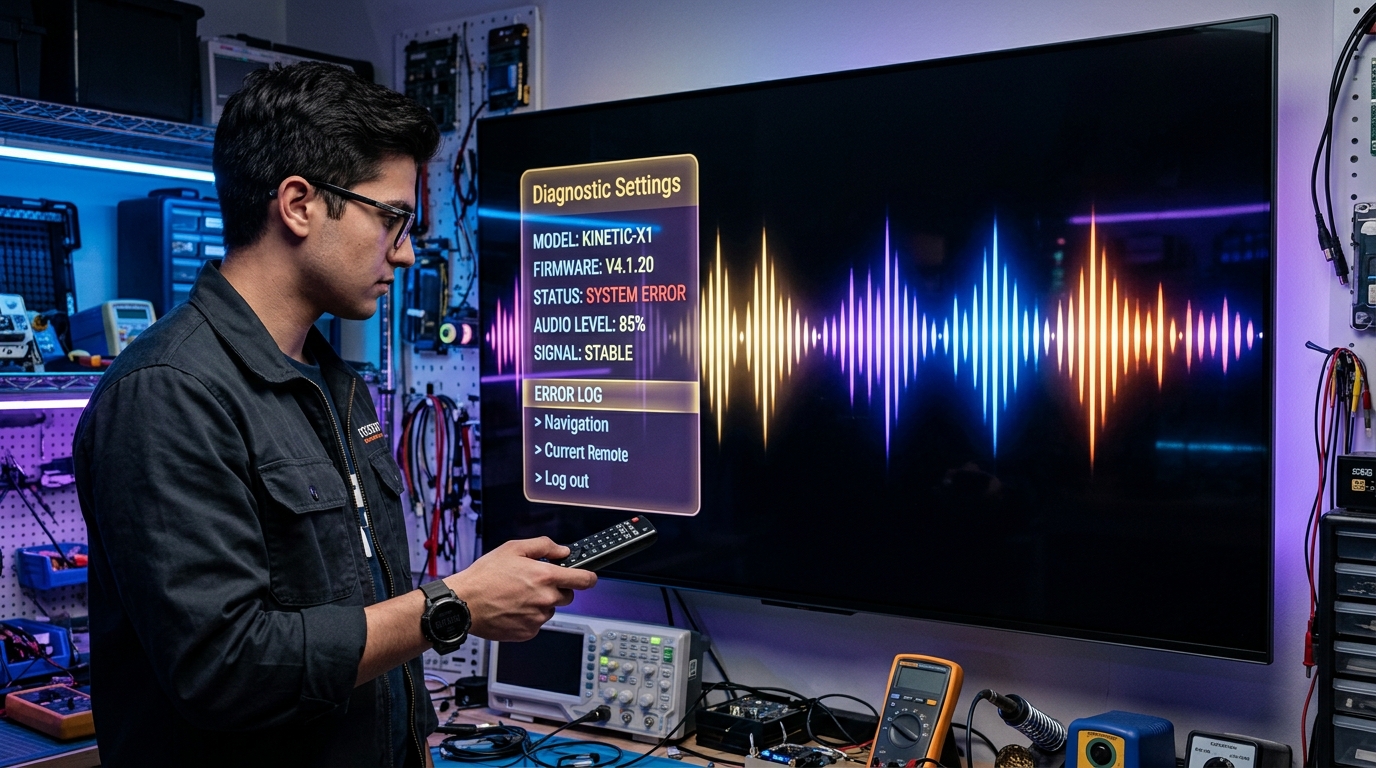
There is scarcely a more exasperating glitch in modern home entertainment than tuning into an eagerly anticipated live sports match or television series, hearing crystal-clear commentary and stadium crowd noise emanating from your soundbar, while your television screen displays nothing but an ominous, pitch-black void.
This phenomenon—universally referred to by streaming engineers as the "IPTV Black Screen with Audio Working" anomaly—is one of the most widely reported technical support inquiries across Android TV, Amazon Firestick, Apple TV, Smart TVs, and desktop IPTV players. Because audio plays flawlessly without stuttering, users instinctively assume the stream is alive, but wonder why their display refuses to render visual pixels.
The reality is that video and audio travel through completely separate digital pathways once a broadcast stream reaches your device. Audio is computationally lightweight, requiring minimal silicon power to decode. Video, on the other hand, demands immense graphics processing, hardware-level codec decoding (such as HEVC or AV1), and a flawless digital handshake between your streaming stick and your television display. When any single link in that complex video processing pipeline breaks, the video rendering engine crashes or displays an empty surface, while the lightweight audio thread continues playing unbothered.
In this exhaustive technical diagnostic guide, the VIPSATV engineering team demystifies the underlying architecture of digital video delivery, isolates every root cause of the black screen audio-only anomaly, and provides step-by-step instructions to permanently resolve the issue across every major streaming platform and player application.
1. The Anatomy of the Glitch: Why Audio Plays When Video Fails
To effectively troubleshoot a black screen, one must first understand how modern IPTV streams package and transmit multimedia data from server to screen.
+----------------------------------------------------------------------------+
| Inside an IPTV Stream: Demultiplexing (Demuxing) Video and Audio           |
|                                                                            |
| [Incoming MPEG-TS or HLS Network Stream]                                   |
|                     │                                                      |
|                     ▼                                                      |
|       [Software Demuxer / Parser]                                          |
|         ┌───────────────────────┴───────────────────────┐                  |
|         ▼                                               ▼                  |
| [Audio Stream Packet]                     [Dense Video Stream Packet]      |
| (AAC / AC3 Bitstream)                     (1080p60 / 4K HEVC Bitstream)    |
|         │                                               │                  |
|         ▼                                               ▼                  |
| [Audio DSP / Basic CPU]                   [Hardware GPU / VPU Silicon]     |
| ~128 Kbps (Low Load)                      ~8,000 - 25,000 Kbps (Huge Load) |
|         │                                               │                  |
|         ▼                                               ▼                  |
| [SUCCESS: Sound Plays!]                   [FAILURE: Codec Crash / HDCP]    |
|                                                         │                  |
|                                                         ▼                  |
|                                             [PITCH BLACK SCREEN VOID]      |
+----------------------------------------------------------------------------+
The Mechanics of MPEG Transport Streams (MPEG-TS)
The vast majority of live IPTV broadcasts are delivered using the MPEG-2 Transport Stream (MPEG-TS) container format or HTTP Live Streaming (HLS). Within a single network data stream, individual data packets are assigned specific Packet Identifiers (PIDs):
- Audio PID: Contains compressed audio packets (typically stereo AAC, Dolby Digital AC-3, or MP2). An audio track requires a modest data throughput of roughly 128 to 384 kilobits per second (Kbps). Even an entry-level microchip manufactured a decade ago can decompress AAC audio using less than 1% of its processing capacity without breaking a sweat.
- Video PID: Contains heavily compressed high-definition or 4K video frames (H.264/AVC, H.265/HEVC, or AV1). A high-frame-rate live sports broadcast transmits between 8,000 and 25,000 Kbps of complex mathematical data representing 60 distinct photographic frames every second.
Because audio and video travel through separate demultiplexing pipelines, a failure in the video rendering pipeline does not impact audio decoding. The audio engine happily continues playing sound even if the video surface has completely crashed.
2. The Five Underlying Root Causes of the Black Screen Glitch
Through hundreds of hours of lab diagnostics across diverse consumer hardware, streaming engineers have isolated the black screen audio-only defect to five specific technical bottlenecks:
+--------------------------------------------------------------------------+
| The 5 Primary Causes of IPTV Black Screen with Audio                     |
|                                                                          |
| 1. HARDWARE DECODER CRASH   : MediaCodec out of graphics memory          |
| 2. HEVC 10-BIT COLOR PROFILE: Device VPU cannot decode Main 10 profile   |
| 3. HDMI HDCP HANDSHAKE DROP : Copy-protection link fails between TV & box|
| 4. MEDIA ENGINE CONFLICT    : ExoPlayer parser stalling on non-std TS    |
| 5. REFRESH RATE HANDSHAKE   : TV panel fails to switch to 50 Hz or 60 Hz |
+--------------------------------------------------------------------------+
Root Cause 1: Hardware Video Decoder (MediaCodec) Crash
On Android TV, Google TV, and Amazon Fire OS devices, applications hand off video decoding to the operating system's native MediaCodec API.
- If an application requests more graphical memory (DMA buffers) than the system can allocate, or if a previous video stream was not cleanly flushed from memory during a rapid channel switch, the hardware decoder crashes silently.
- When MediaCodec fails, the player's video display surface becomes transparent or black, while the background audio thread continues playing.
Root Cause 2: HEVC / H.265 Main 10 Profile Incompatibility
High-definition and 4K broadcasts increasingly utilize the HEVC Main 10 compression profile, which features 10-bit color depth (allowing over 1 billion colors) and High Dynamic Range (HDR10/HLG).
- Older streaming devices (such as 1st Generation Firesticks or budget Android boxes manufactured before 2019) only contain hardware silicon capable of decoding 8-bit HEVC (Main Profile).
- When an 8-bit hardware decoder encounters a 10-bit video bitstream, it cannot calculate the pixel values and drops the video stream entirely, resulting in pitch-black video with normal audio.
Root Cause 3: HDMI HDCP Handshake and DRM Surface Allocation
Modern televisions and streaming boxes enforce High-bandwidth Digital Content Protection (HDCP 2.2) over physical HDMI cables.
- If your HDMI cable has degraded, or if the HDMI input port on your television encounters an electrical handshake timeout, the streaming device's graphics stack blocks video output to prevent unauthorized screen recording.
- Crucially, HDCP handshakes often permit audio passthrough while blanking video pixels!
Root Cause 4: Media Engine Protocol Mismatches (ExoPlayer vs. libVLC)
Most modern IPTV players (including TiviMate and XCIPTV) use Google's ExoPlayer as their default playback engine.
- ExoPlayer enforces strict compliance with MPEG-TS specifications. If a broadcaster transmits non-standard transport stream headers or omitted Sequence Parameter Sets (SPS), ExoPlayer stalls waiting for valid metadata.
- By contrast, libVLC (the engine behind VLC Media Player) is extremely forgiving of malformed streams and can display video where ExoPlayer fails.
Root Cause 5: Display Refresh Rate Switching Failures
If you have Auto Frame Rate (AFR) matching enabled, your streaming device commands your television to switch refresh rates (e.g., from 60 Hz to European 50 Hz). If the television's HDMI controller fails to complete the timing handshake, the screen remains black indefinitely while audio plays in the background.
3. Step-by-Step Solutions for TiviMate IPTV Player
TiviMate is the premier player for Android TV and Firestick, and offers several powerful settings to bypass black screen errors:
[TiviMate Black Screen Fix Sequence]
1. Settings ──► Playback ──► Toggle Video Decoder to "Software"
2. Settings ──► Playlists ──► Xtream Codes ──► Toggle Output Format to "HLS"
3. Settings ──► Playback ──► Auto Frame Rate ──► Toggle OFF
Fix 1: Switch Video Decoder to "Software"
- While on the black screen channel, press the Select (OK) button on your remote control to bring up the on-screen player controls.
- Press the Down Arrow to highlight the settings gear icon on the bottom-right of the screen and select Playback Settings.
- Locate Video Decoder and change it from Hardware to Software.
- Software decoding forces your device's CPU to render the video mathematically, bypassing the crashed hardware VPU.
Fix 2: Change Output Format to HLS
- Navigate to TiviMate Settings -> Playlists -> [Your VIPSATV Playlist].
- Select Xtream Codes Parameters.
- Change Output Format from MPEG-TS to HLS.
- HLS streams video in chunked segments that carry fresh initialization headers with every chunk, eliminating transport stream demuxer stalls.
Fix 3: Disable Audio/Video Tunneling
In advanced versions of TiviMate on Android TV:
- Open Settings -> Playback.
- If available, locate Tunneling (Amlogic Tunnel Mode) and switch it to OFF. While tunneling reduces latency on supported televisions, it frequently produces black screens on incompatible soundbars.
4. Step-by-Step Solutions for IPTV Smarters Pro & XCIPTV
If you experience the black screen anomaly in IPTV Smarters Pro or XCIPTV Player, switching the underlying media engine is the fastest resolution:
[IPTV Smarters Pro Settings] ──► [Player Settings] ──► [Change "Native" to "VLC Engine"]
Fix 1: Switch Player Engine from Native to Built-in VLC
- Return to the main Smarters Pro dashboard.
- Click the Settings Gear Icon in the top-right corner.
- Select Player Settings.
- Under Live TV, change the player selection from Hardware / Native to VLC Player.
- Save the settings and return to the channel. The built-in VLC engine will parse the HEVC bitstream and restore full video output immediately.
Fix 2: Clear Application Cache in Operating System Settings
- On your Firestick or Android TV, open Settings -> Applications -> Manage Installed Applications.
- Select IPTV Smarters Pro.
- Click Force Stop, then click Clear Cache.
- Re-launch the application. Clearing the cache purges corrupted frame buffers from system memory.
5. Step-by-Step Solutions for Amazon Firestick & Fire TV Devices
Amazon Fire TV Stick models (especially older 2nd Gen and Firestick Lite units) require specific hardware display calibration to prevent video handshake drops:
+--------------------------------------------------------------------------+
| Amazon Firestick Display Calibration Checklist                           |
|                                                                          |
| [Settings -> Display & Sounds -> Display -> Resolution] ──► Set to 1080p |
| [Settings -> Display & Sounds -> Display -> Color Depth]──► Set to 8 bits|
| [Settings -> Display & Sounds -> Display -> Color Format]─► Set to YCbCr |
+--------------------------------------------------------------------------+
Fix 1: Adjust Fire OS Color Depth
- Navigate to Firestick Settings -> Display & Sounds -> Display.
- Open Color Depth.
- If set to 10 bits or 12 bits, change it to 8 to 10 bits (or 8 bits on non-4K televisions). Setting an unsupported color depth can cause the television's HDMI receiver to drop video signals while audio continues playing.
Fix 2: Lock Display Resolution to 1080p 60Hz
- In the same Display menu, open Resolution.
- Change the setting from Auto (Up to 4K) to 1080p 60Hz.
- If your television's HDMI 2.0/2.1 handshake is failing under 4K signals, locking the output to 1080p eliminates HDCP bandwidth errors.
Fix 3: Reseat HDMI Dongle and Perform a Hardware Power Cycle
- Unplug the Firestick from the HDMI port.
- Unplug the television from its wall power outlet.
- Wait 60 full seconds to allow all residual electrical charge to drain from the television's HDMI controller chip.
- Plug the television back into power, reconnect the Firestick, and power the device using its official wall power adapter (never use low-power TV USB ports!).
6. Step-by-Step Solutions for Apple TV 4K & tvOS
While Apple TV 4K contains state-of-the-art silicon, tvOS display synchronization can occasionally cause audio-only playback:
[tvOS Settings] ──► [Video and Audio] ──► [Format] ──► [Change to 4K SDR]
                                                              │
                                                              ▼
                                  [Match Content] ──► Toggle Frame Rate OFF/ON
Fix 1: Reset Match Dynamic Range & Match Frame Rate
- Open tvOS Settings -> Video and Audio -> Match Content.
- Temporarily toggle Match Frame Rate to OFF.
- Return to your IPTV application (iPlayTV, UHF, or Smarters). If video appears immediately, your television panel's HDMI board was stalling during the frame rate handshake.
Fix 2: Check HDMI Cable Connection Health
tvOS includes a built-in HDMI diagnostic tool:
- Open Settings -> Video and Audio -> Check HDMI Connection.
- Apple TV will transmit high-bandwidth test signals across your HDMI cable for two minutes.
- If the test reports an unstable connection, replace your cable with an Ultra High Speed 48 Gbps HDMI 2.1 cable.
7. Step-by-Step Solutions for Samsung Tizen & LG webOS Smart TVs
For viewers using smart TV applications like IBO Player or Smart ONE IPTV:
Fix 1: Switch Media Player Engine in App Settings
- Open IBO Player on your Samsung or LG television.
- Navigate to Settings -> General Settings.
- Locate Player Engine and toggle it from Native SoC to ExoPlayer / Media Player 2.
- Smart TVs feature secondary built-in decoders that resolve codec profile conflicts.
Fix 2: Power-Cycle the Television (Cold Boot)
Pressing the power button on a modern smart TV remote merely places the TV into standby sleep mode. It does not reboot the television's operating system:
- While the TV is on, press and hold the Power button on your remote control for 10 seconds until the manufacturer logo appears on screen.
- Alternatively, unplug the television from the wall for two minutes. A cold boot clears system RAM and restores video surface memory.
8. ISP Throttling and Fragmented Transport Streams
In certain scenarios, a black screen with functioning audio is not a client-side device glitch at all, but rather the result of severe network packet fragmentation caused by residential Internet Service Providers:
[ISP Deep Packet Inspection] ──► Drops 80% of Heavy Video Packets (P-Frames & I-Frames)
                                 │
                                 ▼
[Audio Packets Arrive Unharmed] ──► [Sound Plays, but Video Decoder Has Zero Frames to Render!]
How Network Throttling Mimics a Video Codec Crash
Because video streams consume 98% of an IPTV stream's bandwidth while audio consumes less than 2%:
- When an ISP throttles an IPTV connection down to 1.5 Mbps during peak evening hours, there is sufficient bandwidth for lightweight audio packets to arrive intact.
- Video packets, however, suffer catastrophic packet loss. With no complete video frames reaching your device, the hardware decoder cannot render an image, resulting in a black screen.
- The Diagnostic Test: Launch a high-speed VPN utilizing the WireGuard protocol. If the black screen instantly transforms into a crystal-clear 1080p picture, your ISP was throttling your connection.
9. Comprehensive Troubleshooting Diagnostic Checklist
Follow this systematic 6-step diagnostic protocol to resolve any black screen anomaly within two minutes:
- Step 1: Test Adjacent Channels: Switch to two other channels in different categories. If other channels display picture normally, the issue is an encoder profile conflict on that specific broadcast feed.
- Step 2: Toggle Video Decoder to Software: In player settings, switch from Hardware to Software or VLC Player. This resolves 80% of codec-related black screens.
- Step 3: Change Stream Format to HLS: In Xtream Codes playlist parameters, toggle the stream format from MPEG-TS to HLS.
- Step 4: Force Close and Clear Cache: Go to device application settings, force stop the IPTV app, and clear its cache memory.
- Step 5: Inspect HDMI Cable & Color Depth: Lower display resolution to 1080p 60Hz and set color depth to 8 bits to eliminate HDMI handshake timeouts.
- Step 6: Power-Cycle Router and Streaming Device: Unplug both devices from wall power for 60 seconds to reset network routing and hardware memory heaps.
10. Deep Dive: MediaCodec Profiles and Hardware Compatibility
To understand why your streaming device struggles with specific channels while handling others effortlessly, you must examine the hardware specifications of your device's System-on-Chip (SoC) Video Processing Unit:
+--------------------------------------------------------------------------+
| Video Codec Profile Compatibility Matrix                                 |
|                                                                          |
| Codec Profile     │ Firestick Lite │ Firestick 4K Max │ Apple TV 4K (A15)|
|----------------───┼────────────────┼──────────────────┼──────────────────|
| H.264 High Profile│ YES (1080p60)  │ YES (1080p60)    │ YES (4K60)       |
| HEVC Main (8-bit) │ YES (1080p60)  │ YES (4K60)       │ YES (4K60)       |
| HEVC Main 10 (10b)│ NO  (BLACK SCR)│ YES (4K60 HDR)   │ YES (4K60 HDR)   |
| AV1 Main Profile  │ NO  (CRASH/SW) │ YES (4K60)       │ YES (4K60 HDR)   |
+--------------------------------------------------------------------------+
The Technical Trap of 10-Bit Color Encoding
Standard High Definition television operates in 8-bit color, allocating 256 shades per color channel (Red, Green, Blue) for a total of 16.7 million colors.
- Modern 4K High Dynamic Range (HDR) feeds utilize 10-bit color (HEVC Main 10), providing 1,024 shades per channel for over 1.07 billion colors.
- When an incoming 10-bit video bitstream hits an older 8-bit hardware Video Processing Unit (such as an early Firestick or budget Allwinner/Rockchip box), the hardware registers a decode error.
- Because Android's MediaCodec does not automatically downscale 10-bit video to 8-bit in hardware, it simply outputs black frames to the display surface while audio continues uninterrupted.
- The Solution: On older hardware, you must force the player to decode via Software Decoding (SW) or the VLC engine, which downsamples 10-bit colors into 8-bit space via CPU calculation.
11. Windows PC and macOS Desktop Troubleshooting
If you encounter the black screen with audio glitch while using desktop IPTV applications (such as IPTV Smarters Pro Desktop, VLC Media Player, or SFVIP Player on Windows and macOS):
[VLC / Desktop Player Preferences] ──► [Video] ──► [Output Module]
                                                        │
                                                        ▼
                        [Change "Automatic" to "Direct3D11" (Win) or "Metal" (Mac)]
1. Windows PC Display Output Configuration
- Open VLC Media Player on your PC.
- Navigate to Tools -> Preferences (set Show Settings to All in the bottom-left corner).
- Expand Video -> Output Modules.
- Change the video output module from Automatic to Direct3D11 Video Output (or Direct3D9 on older Windows installations).
- Under Input / Codecs, locate Hardware-accelerated decoding and set it to D3D11VA (Direct3D 11 Video Acceleration).
- Save and restart the application.
2. macOS Video Renderer Configuration
- In desktop media player settings on Mac, locate the Video Output module.
- Select Metal Video Output (or OpenGL on legacy Intel Macs).
- Ensure Hardware Acceleration is set to VideoToolbox. This allows Apple's native hardware decoding pipeline to handle the video stream without OpenGL context crashes.
12. Android Display Surfaces: SurfaceView vs. TextureView
Within advanced settings of players like TiviMate and OTT Navigator, you may encounter an option to choose between SurfaceView and TextureView display rendering modes:
+--------------------------------------------------------------------------+
| SurfaceView vs. TextureView Performance                                  |
|                                                                          |
| SurfaceView : Direct compositor hardware plane │ Lowest latency │ Fast   |
| TextureView : Standard Android view hierarchy  │ High memory    │ Steady |
+--------------------------------------------------------------------------+
When to Toggle to TextureView
- SurfaceView (Default): Directly punches a hole in the Android UI window and renders video onto a dedicated hardware compositor plane. It provides the highest framerates and lowest power consumption. However, on certain television SoCs (particularly older MediaTek chipsets), opening on-screen menus or EPG overlays over a SurfaceView can cause the video surface to drop out, creating a black screen.
- TextureView: Treats the video stream like a regular graphical widget inside the view hierarchy. While it consumes slightly more memory, switching to TextureView permanently resolves black screens caused by UI overlay collisions.
13. HDMI HDCP 1.4 vs. 2.2 Handshakes & Audio Extraction Conflicts
Many home theater setups feature complex signal routing involving soundbars, AV receivers, and HDMI splitters. These intermediate devices are frequent culprits in black screen anomalies:
[Streaming Box: HDCP 2.2 4K Signal] ──► [Older AV Receiver: HDCP 1.4 Only!] ──► [OLED TV]
                                                     │
                                                     ▼
                  [HDCP Handshake Failure! Video Blanked, Audio Passthrough Plays]
The HDCP Down-Conversion Bottleneck
If your streaming box outputs a 4K 60FPS stream protected by HDCP 2.2, but your soundbar or HDMI switch only supports legacy HDCP 1.4:
- The receiver passes the audio bitstream to your speakers over HDMI eARC.
- However, the video signal is blocked because the chain cannot establish an authenticated HDCP 2.2 encryption handshake.
- The Solution: Plug your streaming device directly into an HDMI 2.0/2.1 port on your television display, and route audio back to your soundbar using a separate HDMI eARC cable or optical audio connection.
14. Broadcaster Ingestion Faults: When the Glitch is at the Stadium
While 95% of black screen occurrences stem from client-side decoder or HDMI conflicts, occasionally the fault originates directly at the broadcast source:
[Stadium Camera Feed] ──► [Faulty SDI Video Line] ──► [Ingestion Encoder Receives Audio Only]
                                                                  │
                                                                  ▼
                                            [Black Video PID Transmitted to All Users!]
How to Confirm a Source-Side Ingestion Fault
- Verify on Multiple Devices: Test the channel on your phone (using cellular data) and your television simultaneously.
- If the channel displays a black screen with audio on both completely different hardware platforms and networks, the television network's primary broadcast uplink has lost its video feed at the master control room.
- Top-tier providers like VIPSATV maintain automated 24/7 stream monitoring systems that detect dead video PIDs and automatically switch to redundant satellite backup feeds within seconds.
15. Audio-Only Channel Detection & OLED Screen-Saver Policies
In certain specialized circumstances, a black screen with audio working is not a system failure at all, but rather intentional operating system or player behavior:
1. Digital Radio & Music Channels
Many international broadcast packages on IPTV include thousands of digital radio stations (e.g., BBC Radio, SiriusXM feeds, Stingray Music).
- Radio stations transmit exclusively via an Audio PID with an intentionally empty or null video PID.
- When you select a radio channel, the player plays audio through your sound system while displaying a static background or pure black screen to protect television panels from static image burn-in.
2. OLED Television Screen-Saver Blanking
Modern OLED televisions (such as LG C-Series or Sony Bravia OLEDs) feature aggressive burn-in protection algorithms:
- If a channel displays static graphical elements for an extended duration, the television's internal software may activate Screen Off or Picture Off mode.
- Audio continues to play through your connected soundbar while the OLED panel turns off all pixel illumination. Pressing any volume or arrow button on your television remote immediately wakes the display.
Experience VIPSATV
Upgrade your entertainment with ultra-stable, anti-freeze streaming. Access premium live channels, global sports, and curated VOD across all your supported devices.
Frequently Asked Questions
Conclusion and Final Troubleshooting Summary
The IPTV black screen with audio working anomaly is one of the most puzzling glitches in modern streaming, but it is entirely solvable once you understand the underlying mechanics of video demultiplexing, hardware decoders, and display handshakes.
By toggling video decoders between hardware and software, switching player media engines, adjusting HDMI color depth, and utilizing enterprise providers that maintain clean, standardized broadcast encoding, you can restore crystal-clear television across all your favorite devices.
Experience television backed by enterprise streaming architecture engineered for stability. Explore our complete range of VIPSATV subscription plans, check our comprehensive device setup tutorials, or contact our video diagnostics engineering team through our support center.