The Best IPTV Players for Firestick, Android TV, Apple TV & Smart TV: In-Depth 2026 Comparison & Setup
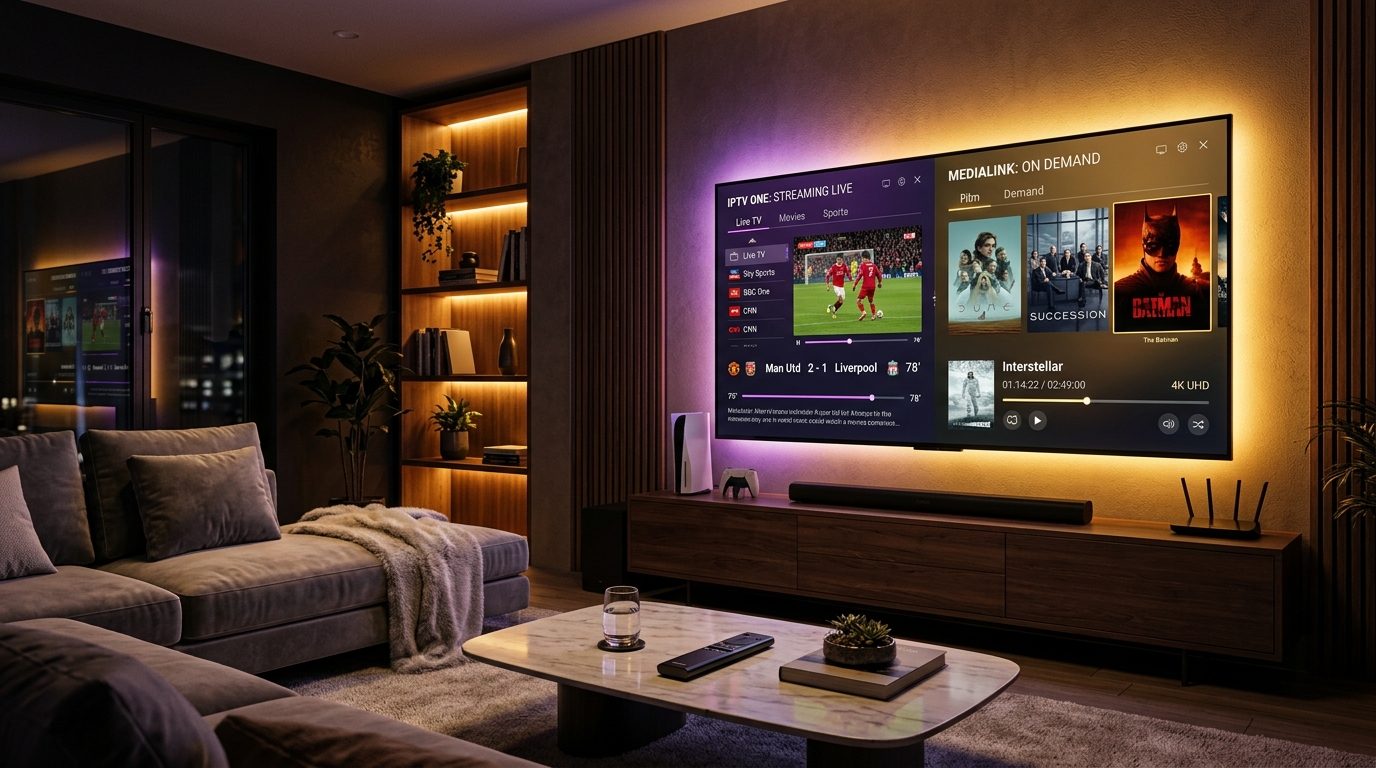
When transitioning to Internet Protocol Television, many cord-cutters assume that their visual experience is dictated entirely by their chosen subscription provider. In reality, modern IPTV viewing is governed by a two-part ecosystem: the IPTV Service Provider, which supplies stream transport URLs, broadcast feeds, and server infrastructure; and the IPTV Player Application, which acts as the physical operating environment on your screen.
The software application you install on your streaming device controls every visual and tactile interaction: the speed at which channels switch, the fluidity of the Electronic Program Guide (EPG), audio-video synchronization, multi-screen viewing capabilities, recording functions, and hardware codec decoding. Pairing a world-class, anti-freeze provider with a poorly coded or outdated player application will inevitably lead to frustrating interface lag, frequent crashes, and compromised picture quality.
This comprehensive technical guide delivers an in-depth comparative evaluation of the top IPTV player applications available across Amazon Fire TV Stick, Android TV, Apple TV (tvOS), Samsung Tizen OS, LG webOS, and desktop operating systems. By examining media playback engines, memory footprints, and practical usability, you can select the perfect player software tailored to your household hardware.
1. The Anatomy of an IPTV Player: How Media Engines Render Streams
To understand why certain IPTV players perform flawlessly while others stutter during live broadcasts, it helps to examine how player software processes incoming internet video data. An IPTV player is not merely a graphical shell; it incorporates an underlying media playback framework that bridges network protocols with your device's physical graphics processing unit (GPU).
[IPTV Server Transport Stream]
               │
               ▼
   [Network Demuxer Socket]
               │
               ▼
   [Underlying Media Engine: ExoPlayer / libVLC / AVPlayer]
               │
               ▼
   [Hardware Video Decoder (GPU)] ──► [Display Output: 4K 60 FPS]
The Core Media Engines Powering Modern Players
Different player applications rely on specific internal decoding frameworks:
- Google ExoPlayer (Android / Fire OS): The industry benchmark media player library developed by Google. ExoPlayer is lightweight, highly customizable, and deeply integrated into Android's native media stack. It excels at handling H.264/AVC, H.265/HEVC, and adaptive HLS (HTTP Live Streaming) playlists with rapid socket handshakes and low buffer overhead. Applications like TiviMate and XCIPTV utilize ExoPlayer as their primary rendering engine.
- VideoLAN libVLC (Cross-Platform): The open-source engine that powers VLC Media Player. libVLC is renowned for its universal codec support. It can parse non-standard transport stream containers, unusual audio tracks (such as EAC-3 or DTS), and corrupt keyframes that might cause other players to stall. Many applications, including IPTV Smarters Pro, allow users to switch to the VLC engine when encountering problematic audio or video streams.
- Apple AVPlayer & Metal Framework (tvOS / iOS): Built natively into Apple's operating systems, AVPlayer leverages Apple's dedicated hardware silicon for instantaneous de-interlacing, color space mapping, and frame-accurate timing. Premium tvOS applications (like iPlayTV and UHF Player) build directly atop AVPlayer to provide silky 60 FPS user navigation.
2. Key Criteria for Evaluating IPTV Player Applications
Before downloading a player application onto your streaming terminal, assess its technical capabilities across five critical performance metrics:
1. Graphical Interface and Remote Control Ergonomics
A premium player should feel like a high-end cable or satellite set-top box. It should offer intuitive directional-pad (D-pad) navigation, quick-access channel numbers, searchable favorites categories, and an uncluttered on-screen timeline. Mobile-first apps awkwardly ported to televisions require clumsy mouse toggles and should be avoided.
2. Channel Switching Latency (Zapping Time)
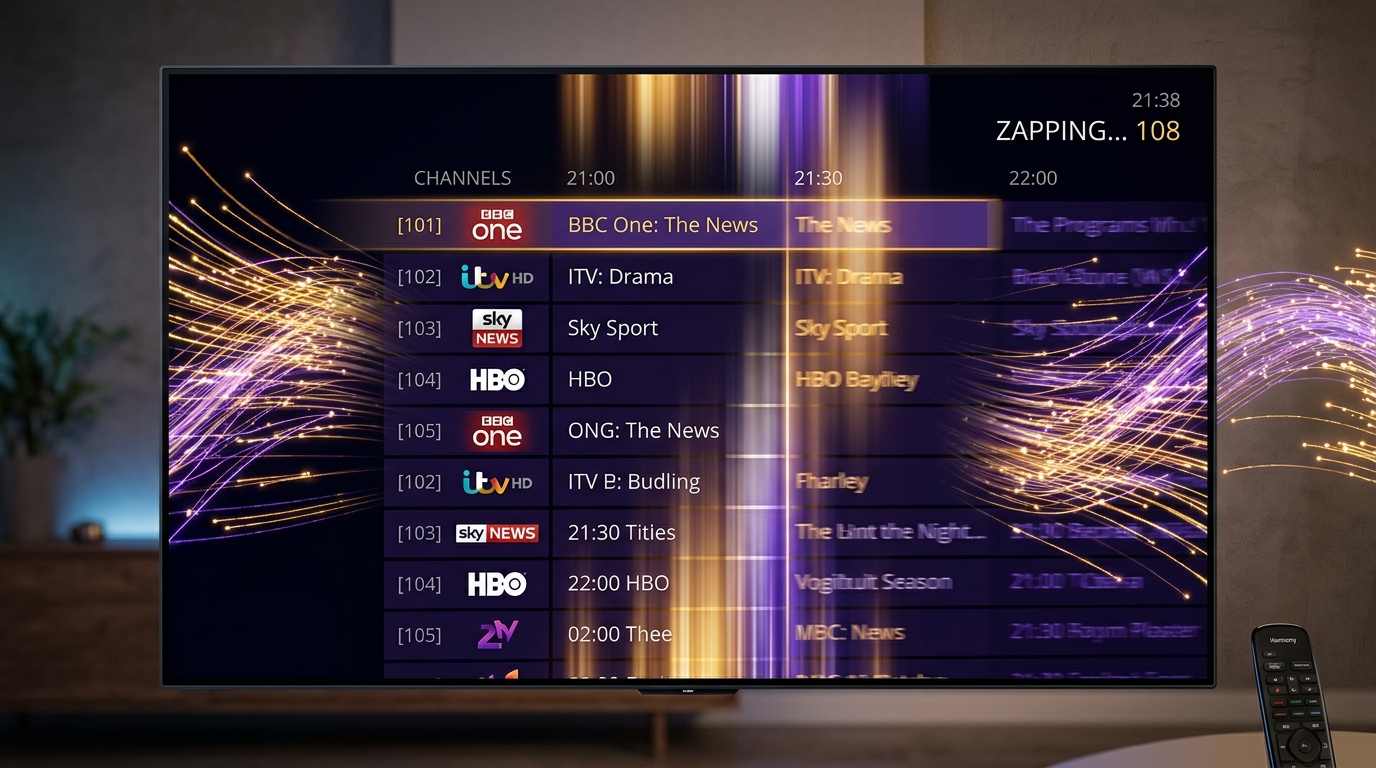
Channel Zapping Time measures the duration between clicking a channel and the appearance of decoded video on screen. Well-optimized players initialize hardware decoders and buffer video frames within 1.0 to 1.5 seconds. Inefficient players take four to eight seconds to establish socket connections and parse transport stream headers.
3. Electronic Program Guide (EPG) Performance
Loading an EPG database containing 20,000+ entries across seven days of programming requires substantial memory optimization. Top players store EPG data in indexed local SQLite databases, enabling smooth 60 FPS scrolling through the schedule grid without micro-stutters or out-of-memory crashes.
4. Advanced Playback Features: Multi-View, Catch-Up & Recording
Sports fans and power users demand advanced playback tools:
- Multi-Screen (Multi-View): Splitting the screen into two, three, or four simultaneous live streams to watch multiple football games or racing events at once.
- Catch-Up TV: Seamlessly browsing backward through the EPG timeline to stream past programs on demand.
- Local Recording (PVR): Scheduling and saving live broadcasts directly to internal device storage or networked storage drives (SMB/NAS).
5. Multi-Playlist and Connection Protocol Support
Versatile players support both Xtream Codes API credentials (Server URL, Username, Password) and standard M3U/M3U8 playlist URLs, allowing users to manage multiple provider accounts or backup lines within a single unified interface.
3. In-Depth Review: TiviMate IPTV Player (The Gold Standard for Android & Firestick)
Widely recognized among streaming enthusiasts as the pinnacle of IPTV software on Android-based platforms, TiviMate was engineered specifically for large television displays and remote control navigation. Developer Arman Mkrtychyan built TiviMate from the ground up to recreate and surpass the premium cable and satellite set-top box experience.
+--------------------------------------------------------------------------+
| TiviMate 5.x Interface Layout                                            |
| [Search]  [Favorites]  [All Channels]  [TV Guide]  [Settings]            |
|--------------------------------------------------------------------------|
| US | ESPN FHD 60FPS      │ 20:00 - 22:30  Live College Basketball Game   |
| US | TNT Sports 1 UHD    │ 20:00 - 22:00  NBA Live: Celtics vs Lakers    |
| UK | Sky Sports Main Ev. │ 20:30 - 22:45  Premier League Football Live   |
+--------------------------------------------------------------------------+
Architectural Strengths
- Native Android TV Architecture: TiviMate does not use web wrappers or mobile layout conversions. It runs on pure native Android code, resulting in zero navigation latency and immediate remote button responsiveness.
- ExoPlayer Integration: Built directly on Google's ExoPlayer, TiviMate delivers instantaneous video decoding, low buffer latency, and hardware acceleration for H.264, HEVC, and AV1 bitstreams.
- Sophisticated Multi-View Engine: Allows viewers to watch up to nine screens simultaneously on powerful hardware like the Nvidia Shield TV Pro, or up to four screens on an Amazon Fire TV Stick 4K Max. Audio can be toggled between active panels with a single click.
- Robust Catch-Up Navigation: If your VIPSATV subscription plan includes catch-up support, TiviMate indicates available replays with a clock icon next to the channel name, allowing instant one-click time-shifted playback.
Customization and Tuning Options
TiviMate gives users complete control over playback parameters:
- Buffer Size Tuning: Choose between None, Small, Medium, or Large. Setting the buffer to Small yields rapid 1.0-second zapping times on fast fiber connections, while Medium protects against wireless jitter.
- Auto Frame Rate (AFR) Matching: Automatically switches your television's display refresh rate to match the incoming broadcast (e.g., 50.00 Hz for European soccer or 59.94 Hz for North American sports), completely eliminating judder.
- Custom EPG Source Assignment: Map secondary XMLTV guides to individual channels or adjust timezone offsets down to the minute.
Limitations
- Android / Fire OS Only: TiviMate is not available on Apple tvOS, Samsung Tizen, LG webOS, or Windows.
- Premium License Requirement: While a basic free version exists, unlocking multi-view, recording, and catch-up requires TiviMate Premium (available via annual subscription or one-time lifetime license via the Google Play TiviMate Companion app).
4. In-Depth Review: IPTV Smarters Pro (The Universal Cross-Platform Benchmark)
IPTV Smarters Pro is the most widely deployed IPTV application globally. Its popularity stems from one major advantage: universal cross-platform availability. Smarters runs natively on Amazon Firestick, Android TV, Apple TV (tvOS), iOS, Android mobile, Samsung Smart TVs, LG webOS, Windows, and macOS.
+--------------------------------------------------------------------------+
| IPTV Smarters Pro Main Dashboard                                         |
|                                                                          |
|    [ LIVE TV ]             [ MOVIES (VOD) ]            [ SERIES ]        |
|  25,000+ Channels          80,000+ Titles             15,000+ Shows      |
|                                                                          |
|    [ INSTALL EPG ]         [ MULTI-SCREEN ]            [ SETTINGS ]      |
+--------------------------------------------------------------------------+
Architectural Strengths
- Modular Dashboard Interface: Smarters separates content into distinct tiles: Live TV, Movies, Series, Catch-Up, and Multi-Screen. This structure makes browsing extensive on-demand movie and TV show libraries intuitive for family members.
- Dual Media Engine Architecture: Smarters allows users to toggle between a native Android hardware player and the built-in VLC Engine. If a rare audio format (like DTS audio or multichannel AAC) fails to play on the default decoder, switching the video player setting to VLC instantly resolves the glitch.
- Parental Controls and Master PIN: Provides robust category locking, enabling parents to restrict adult or international categories with a secure four-digit PIN.
- Master Search Functionality: Rapidly queries live television channels, movies, and episodic series simultaneously from a single search bar.
Customization and Performance Considerations
- Stream Format Selection: Under Settings -> Stream Format, users can choose between MPEG-TS and HLS. Setting the format to MPEG-TS provides the fastest channel zapping, while HLS is recommended for connections prone to occasional packet loss.
- EPG Time Offset: If live programming schedules are shifted by an hour due to daylight saving adjustments, Smarters includes an internal EPG time-shift slider (-12 hours to +12 hours).
Limitations
- Interface Aesthetics: The user interface feels more like an app launcher than a modern broadcast cable guide. Scrolling through large channel categories can feel slightly less responsive than TiviMate's lightning-fast grid.
5. In-Depth Review: XCIPTV Player (Sleek Modern UI with Deep Player Controls)
Developed by OTTRUN, XCIPTV Player has earned a loyal following as a reliable, visually appealing alternative to IPTV Smarters Pro on Android and Fire OS devices.
Architectural Strengths
- Modern Polished Interface: Features a sleek dark-themed dashboard with customizable banner art, clean typography, and a prominent live clock and weather widget.
- Triple Player Engine Integration: XCIPTV incorporates three separate media players: ExoPlayer, VLC Player, and an optional external player hook (allowing playback through MX Player or Nova Video Player). Users can assign different decoders to Live TV and VOD independently.
- Built-in Speed Test Utility: Includes an internal broadband speed testing tool that measures throughput directly between your streaming stick and test servers, making it easy to diagnose buffering bottlenecks without leaving the app.
- Automated Backup & Restore: Export your configured settings, favorites lists, and UI customizations to cloud storage or a local USB drive for rapid deployment across multiple household televisions.
Limitations
- Occasional banner advertisements in the free version (can be removed by upgrading to the ad-free Pro tier).
- Not available natively on Apple tvOS or Samsung/LG smart television app stores.
6. In-Depth Review: iPlayTV & UHF Player (The Luxury Benchmarks for Apple TV 4K)
For owners of the Apple TV 4K who demand a visual interface that matches Apple's high design standards, standard Android-style IPTV apps fall short. Two dedicated tvOS applications have set the benchmark for luxury IPTV playback: iPlayTV and UHF Player.
+--------------------------------------------------------------------------+
| Apple tvOS iPlayTV Architecture: Metal API + AVPlayer Engine             |
| - Locked 60 FPS Fluid Navigation & Transitions                           |
| - Native Dynamic Range Matching (SDR / HDR10 / Dolby Vision)             |
| - Seamless iCloud Synchronization Across Apple TV, iPad, and iPhone      |
+--------------------------------------------------------------------------+
iPlayTV: The Veteran tvOS King
iPlayTV has long been celebrated as the finest IPTV player on tvOS:
- Metal Graphics Optimization: Every channel transition, poster flip, and EPG scroll runs at a locked 60 FPS without dropping frames.
- Multi-Playlist Architecture: Effortlessly aggregate multiple provider lines into a unified channel directory.
- Automated EPG Caching: Downloads schedule archives in the background and stores them in Apple TV's high-speed unified memory, delivering instant guide rendering.
- tvOS Remote Integration: Fully supports the touch-sensitive clickpad on the Apple TV Siri Remote, including fluid momentum scrolling through thousands of channels.
UHF Player: The Modern Contender
UHF Player has emerged as a state-of-the-art player across tvOS, iOS, and macOS:
- iCloud Sync: Configure your VIPSATV account once on your iPhone or Mac, and your entire channel lineup, favorites, and watch history synchronize instantly to your living room Apple TV 4K via iCloud.
- Modern SwiftUI Interface: Designed using Apple's latest UI guidelines, featuring glassmorphism elements, dynamic accent colors, and custom poster art scraping.
- Picture-in-Picture (PiP): Allows viewers to minimize a live sports match into a floating window in the corner of the screen while browsing other applications on Apple TV.
7. In-Depth Review: IBO Player & Smart ONE (Smart TV Specialists for Samsung & LG)
Many homeowners prefer a minimalist entertainment center without external HDMI streaming sticks, power cables, or secondary remote controls. For Samsung Smart TVs running Tizen OS and LG Smart TVs running webOS, two applications dominate the ecosystem: IBO Player and Smart ONE IPTV.
The Web Portal Activation Architecture
Because typing lengthy server URLs and passwords using a television remote control is cumbersome, these Smart TV applications utilize a cloud-based MAC address provisioning portal:
[Smart TV: Launches IBO Player] ──► Displays Device ID & Device Key
                                              │
                                              ▼
[User Smartphone / PC Web Browser] ──► Navigates to iboplayer.com/upload
                                              │
                                              ▼
[Enter Device ID + VIPSATV Xtream Codes] ──► Cloud Portal Saves Configuration
                                              │
                                              ▼
[Smart TV: Refresh] ──► Complete Channel Directory Loads Instantly!
Architectural Strengths of IBO Player
- Native Tizen and webOS Binaries: Optimized specifically for television microprocessors, ensuring fast boot times and reliable memory management on TVs with modest system RAM.
- Hardware Acceleration: Automatically taps into the television's internal video processor to decode 4K 60 FPS streams and upscale 1080p feeds.
- Multi-Language Subtitle Support: Excellent compatibility with embedded DVB and teletext subtitles on European and international channels.
Considerations
- Both IBO Player and Smart ONE operate on a 7-day free trial model, requiring a modest one-time activation fee (typically around €6 to €8 per device) to license the software permanently.
8. Advanced Power-User Players: OTT Navigator & Televizo
For enthusiasts using Android-based hardware who appreciate deep technical telemetry, two lesser-known players provide extraordinary capabilities:
OTT Navigator IPTV
OTT Navigator is celebrated for its unmatched depth of configuration:
- Custom Codec Pipeline: Select distinct hardware decoding codecs for individual channel categories or specific video resolutions.
- Live Stream Bitrate Graphs: View real-time graphs displaying network throughput, packet buffer fill percentages, dropped frames, and audio-video sync offsets.
- Picture-in-Picture & Split View: Highly customizable multi-screen layouts with automated audio switching.
Televizo
Televizo offers a streamlined, modern interface designed specifically for pure live television:
- Extremely Lightweight Memory Footprint: Consumes minimal RAM, making it ideal for older streaming dongles or low-cost smart projectors that struggle under heavier applications.
- Fast Startup: Boots straight into the last-watched channel in less than two seconds.
9. Comprehensive Feature Comparison Matrix
| Feature / Metric | TiviMate Premium | IPTV Smarters Pro | iPlayTV (Apple TV) | IBO Player (Smart TV) | XCIPTV Player |
|---|---|---|---|---|---|
| Supported Platforms | Android TV, Firestick | Firestick, Android, iOS, Apple TV, PC, Smart TV | Apple tvOS (Apple TV 4K) | Samsung Tizen, LG webOS, Android | Android TV, Firestick |
| Underlying Media Engine | Google ExoPlayer | ExoPlayer / libVLC | Apple AVPlayer (Metal) | Native TV SoC Decoders | ExoPlayer / VLC |
| Zapping Speed | Lightning (<1.2s) | Fast (~1.8s) | Instant (<1.0s) | Moderate (~2.0s) | Fast (~1.5s) |
| Multi-Screen Support | Yes (Up to 9 screens) | Yes (Up to 4 screens) | No | No | Yes (Up to 4 screens) |
| Catch-Up TV Support | Yes (Integrated Grid) | Yes (Separate Tile) | Yes (Timeline Bar) | Yes (Guide Overlay) | Yes (Category Tab) |
| Local PVR Recording | Yes (Internal / SMB) | Yes (Limited) | No | No | Yes |
| Auto Frame Rate (AFR) | Yes | No | Yes (tvOS System Level) | TV Native | No |
| VOD Poster Art Quality | Good | Excellent | Excellent | Good | Excellent |
| License Cost | Free Trial / Premium $ | Free / Premium $ | One-Time Purchase $ | 7-Day Trial / Lifetime € | Free / Ad-Free Pro $ |
10. Hardware Decoding vs. Software Decoding Explained
Within the settings menus of players like TiviMate, Smarters, and XCIPTV, you will find toggles for Hardware Acceleration (HW) and Software Decoding (SW). Selecting the proper decoding mode is critical for smooth video playback.
+--------------------------------------------------------------------------+
| HARDWARE DECODING (HW / MediaCodec)                                      |
| Directs video bitstream to dedicated GPU/VPU silicon.                    |
| -> Result: 60 FPS fluid playback, low CPU load, zero thermal throttling  |
|--------------------------------------------------------------------------|
| SOFTWARE DECODING (SW)                                                   |
| CPU calculates pixel values mathematically in software.                  |
| -> Result: High CPU load, overheating, dropped frames on 1080p/4K feeds  |
+--------------------------------------------------------------------------+
The Technical Mechanics of MediaCodec
On Android-based devices, hardware decoding routes compressed H.264, HEVC, and AV1 video packets directly into the system's MediaCodec API.
- The device's Video Processing Unit (VPU) handles motion vector calculation, inverse discrete cosine transforms (IDCT), and deblocking filters directly on silicon.
- System CPU load remains under 5%, allowing your streaming stick to stay cool even during 4-hour sports marathons.
- Memory bandwidth is preserved, ensuring seamless navigation and rapid channel switching.
When Software Decoding (SW) is Justified
Software decoding forces your device's general-purpose CPU cores to unpack video frames mathematically:
- Use software decoding only if a niche regional feed utilizes an unsupported legacy format (such as MPEG-4 Part 2 or obsolete DivX/XviD profiles).
- If an HEVC 10-bit stream produces a green screen or audio-only playback on an older hardware decoder, temporarily switching to software decoding or the VLC engine can restore picture output while you troubleshoot.
11. Common IPTV Player Glitches and Technical Solutions
Even with top-tier players, occasional configuration conflicts can disrupt viewing. Below are the most common player-level technical issues and their proven resolutions:
1. Electronic Program Guide (EPG) Not Loading or Blank
- Root Cause: The player's local SQLite database has corrupted, or the schedule URL cache has expired.
- Resolution: In TiviMate or Smarters, navigate to Settings -> EPG -> Clear EPG Cache, then select Update EPG Now. If using Xtream Codes, ensure the account expiration date displayed in the user profile is active.
2. Audio and Video Out of Synchronization (Lip-Sync Delay)
- Root Cause: Audio processing latency in external soundbars or AV receivers connected via optical TOSLink or HDMI ARC.
- Resolution: In TiviMate, press the Down arrow while watching a channel, select the Audio Settings icon, and adjust the Audio Delay slider in increments of 50 milliseconds (+50ms or -50ms) until speech matches mouth movement.
3. Aspect Ratio Distortion (Stretched or Squashed Images)
- Root Cause: The broadcaster has tagged a 4:3 broadcast feed with a 16:9 flag, or the player is forcing full-screen stretch.
- Resolution: Open the player's quick display menu and toggle the Aspect Ratio from Default or Fit to Screen to Original (Source) or 16:9.
4. Audio Stuttering on 5.1 Surround Sound Tracks
- Root Cause: The streaming device is attempting to pass raw Dolby Digital AC-3 or DTS bitstreams to a television that does not support multi-channel passthrough.
- Resolution: In player audio settings, disable Audio Passthrough and set the audio output to Stereo PCM Downmix.
12. Remote Control Keybindings and Navigation Ergonomics
Mastering remote control shortcuts transforms a frustrating click-heavy experience into an effortless broadcast setup:
Recommended TiviMate Keybindings
Under Settings -> Remote Control, customize your directional pad and buttons for peak efficiency:
- Left Click: Opens the quick channel group sidebar without closing the active video stream.
- Right Click: Toggles the last-viewed channel (Instant Channel Return), invaluable for jumping between two live football matches.
- Long Press OK: Opens the Channel Options menu (Add to Favorites, Block Category, Audio Track Selection).
- Long Press Back: Instantly navigates to the primary home menu.
- Blue Button / Custom Key: Triggers Multi-View screen splitting.
IPTV Smarters Pro Navigation Shortcuts
- Red Button on Remote: Refreshes live channel lists and EPG schedules directly from the server.
- Green Button on Remote: Toggles between internal hardware player and VLC engine on the fly.
- Yellow Button on Remote: Opens stream properties, displaying video resolution, codec name, and active bitrate.
13. Step-by-Step Configuration Guide: Connecting Xtream Codes API
Regardless of which player application you choose, authenticating with your VIPSATV subscription via the Xtream Codes API protocol delivers the fastest, most reliable performance. Follow this universal configuration procedure:
- Launch Your Player Application: Open TiviMate, IPTV Smarters Pro, or your chosen player on your streaming device.
- Select "Add Playlist" or "Add User": Look for the prompt to add a new account.
- Choose "Xtream Codes API" / "Login with Xtream API": (Avoid selecting "M3U Playlist" if Xtream Codes is available).
- Enter Your Account Information:
- Playlist Name / Any Name: Enter a recognizable label, such as
VIPSATV Live. - Server URL: Enter your dedicated server portal address (e.g.,
http://line.vipsatv.pro:8080). Ensure you includehttp://and the port number accurately. - Username: Enter your assigned subscription username.
- Password: Enter your secure subscription password.
- Playlist Name / Any Name: Enter a recognizable label, such as
- Enable EPG Synchronization: Ensure the checkbox for Include VOD and Download EPG is checked.
- Click "Add Playlist" / "Login": The application will execute an initial handshake with the server, download channel categories, ingest the on-demand library, and index the electronic program guide.
- Optimize Buffer Settings: Navigate to the player's settings menu, select Playback or Buffer, and set the buffer to Small (or 1000ms) for instantaneous channel switching on stable broadband connections.
For detailed, device-specific visual walkthroughs covering Amazon Fire TV, Apple TV, Smart TVs, and Android TV, visit our complete device installation tutorials.
14. Setting Up Local Recording (PVR) and Network Storage (SMB/NAS)
One of the most powerful features of advanced players like TiviMate is the ability to record live television broadcasts directly to external storage:
Why Internal Storage Fails for IPTV Recording
Streaming dongles like the Firestick 4K contain only 8 GB of internal flash memory, with less than 3 GB available for user files. A single two-hour football match recorded in 1080p 60FPS requires approximately 8 to 12 GB of storage space. Attempting to record to internal memory will exhaust available storage, causing system crashes.
Step-by-Step Network Storage (SMB) Setup in TiviMate
- Prepare Network Shared Folder (SMB): On your home Windows PC, Mac, or dedicated Synology/QNAP NAS drive, create a folder named
IPTV_Recordingsand enable SMB network sharing. - Open TiviMate Settings: Navigate to Settings -> Other -> Recording -> Recordings Folder.
- Select "Select Folder" -> "Add SMB Server": Enter the local IP address of your computer or NAS (e.g.,
192.168.1.50), followed by your shared folder username and password. - Verify Write Permissions: TiviMate will perform a test write to ensure connection speed and write permissions are valid.
- Schedule Recordings: Open the EPG guide, navigate to any upcoming show, long-press the OK button on your remote, and select Custom Recording. TiviMate will wake your device and record the stream in the background automatically.
Experience VIPSATV
Upgrade your entertainment with ultra-stable, anti-freeze streaming. Access premium live channels, global sports, and curated VOD across all your supported devices.
Frequently Asked Questions
Conclusion and Recommended Next Steps
Selecting the right IPTV player application is just as vital as choosing a dependable subscription service. The player software shapes your daily viewing experience—governing everything from interface elegance and EPG responsiveness to frame rate matching and video stability.
For Android TV and Amazon Firestick households, TiviMate Premium delivers an unmatched set-top box experience. For Apple TV 4K owners, iPlayTV and UHF Player leverage Apple Silicon for flawless, fluid playback. And for cable-free Samsung and LG smart TV setups, IBO Player provides reliable, high-definition entertainment with zero external hardware clutter.
Pair your favorite player with an enterprise, anti-freeze streaming service engineered for peak performance. Explore our flexible VIPSATV subscription plans, check our comprehensive device setup tutorials, or contact our technical support specialists via our support center.