IPTV Channel Switching Slow? The Complete Technical Guide to Fixing Zapping Delays & Buffer Latency (2026)
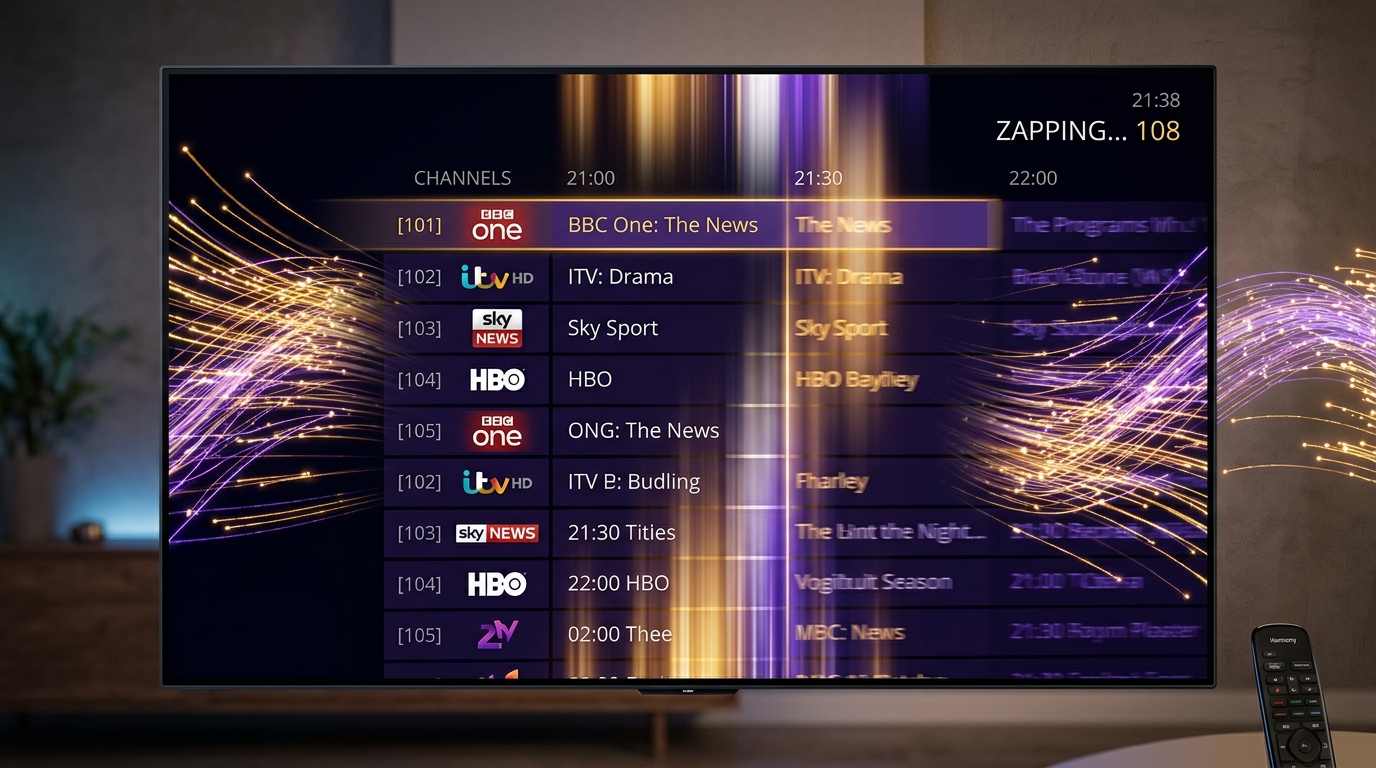
One of the most immediate indicators of a premium, responsive television experience is channel switching speed—technically referred to in digital broadcast engineering as Channel Zapping Time (CZT) or Zapping Time to Terminal (ZTT).
When viewers flip through traditional analog television or direct terrestrial antenna broadcasts, channels appear almost instantaneously—typically within 200 to 400 milliseconds. On Internet Protocol Television, however, many subscribers encounter frustrating delays where pressing "Channel Up" results in a black screen, a spinning loading indicator, and a wait of four, six, or even ten seconds before audio and video finally materialize.
While a brief transition delay is inherent to packet-switched digital video delivery, excessive zapping lag is neither normal nor inevitable. Slow channel switching is the cumulative symptom of specific technical bottlenecks across the streaming pipeline: unoptimized encoder Group of Pictures (GOP) keyframe intervals, oversized client player buffers, software video decoding, uncompressed M3U playlist parsing, and high-latency DNS lookups.
This comprehensive technical guide dissects the exact mathematical and architectural sequence that occurs every time you change an IPTV channel. By methodically diagnosing each stage of the connection pipeline and applying targeted optimizations, you can reduce channel switching delays down to an instantaneous 1.0 to 1.5 seconds.
1. The Anatomy of an IPTV Channel Switch: The 8-Stage Handshake
To understand where switching delays originate, you must look beneath the user interface. When you press the "Channel Up" button on your remote control, your streaming hardware does not simply switch a radio tuner frequency; it executes a complex, eight-stage cryptographic and multimedia handshake over internet protocol networks.
[1. User Clicks Remote]
         │
         ▼
[2. DNS Lookup: line.vipsatv.pro -> IP: 185.x.x.x] (~20-150ms)
         │
         ▼
[3. TCP 3-Way Handshake / TLS Session Negotiation] (~40-90ms)
         │
         ▼
[4. HTTP GET Stream Request + Server Token Authorization] (~50-150ms)
         │
         ▼
[5. Network Demuxer Socket Opens & Receives MPEG-TS Header] (~30ms)
         │
         ▼
[6. Waiting for Next IDR Keyframe (I-Frame GOP Window)] (~500-2,000ms!)
         │
         ▼
[7. Hardware Video Decoder Initialization & Buffer Pre-fill] (~100-300ms)
         │
         ▼
[8. Audio/Video Presentation Timestamp (PTS) Sync ──► Screen Display!]
Stage 1: DNS Resolution (Domain Name Service)
If your player connects to an IPTV server using a domain name (e.g., line.vipsatv.pro), your device must first query a DNS server to translate that domain into a numerical IP address. If your home router relies on slow, default ISP DNS servers, this initial resolution step alone can introduce 150 to 300 milliseconds of dead latency before a single byte of video data is even requested.
Stage 2: TCP Handshake and Transport Negotiation
Once the IP address is known, your streaming device establishes a Transmission Control Protocol (TCP) socket connection with the streaming server. This requires a standard three-way handshake (SYN, SYN-ACK, ACK). If the stream is delivered over encrypted HTTPS, an additional Transport Layer Security (TLS) handshake occurs to negotiate encryption cipher keys.
Stage 3: HTTP GET Request & Authentication
The player transmits an HTTP GET request containing your subscription token or credentials. The origin server or reverse proxy validates your credentials in its active session database, checks concurrent connection allowances, and begins streaming the media payload.
Stage 4: Container Demultiplexing (Demuxing)
The player's software demuxer opens the incoming MPEG-2 Transport Stream (MPEG-TS) packets, reads the Program Association Table (PAT) and Program Map Table (PMT), and separates video packets from audio packets based on their Packet Identifiers (PIDs).
Stage 5: The Keyframe Wait (The Single Biggest Delay!)
A digital video decoder cannot start rendering video from arbitrary middle frames. It must wait until it receives a complete, independent reference frame—an Instantaneous Decoder Refresh (IDR) Keyframe (also called an I-Frame). If the broadcaster encodes an I-Frame only once every three seconds, your device must wait up to 3,000 milliseconds simply for the first usable video frame to arrive over the wire!
Stage 6: Decoder Initialization
The hardware Video Processing Unit (VPU) initializes, allocates frame buffer memory, and prepares motion compensation pipelines.
Stage 7: Buffer Pre-Filling
Before rendering playback, the player fills a temporary safety buffer in device RAM to prevent immediate underrun.
Stage 8: Audio-Video Synchronization
The player synchronizes the video Presentation Timestamp (PTS) with the audio PTS, unmutes the audio output, and renders the first video frame to your television display.
2. The Group of Pictures (GOP) Bottleneck: Video Compression Mechanics
To understand why some IPTV providers switch channels in 1.2 seconds while others take 6 seconds, one must understand how digital video compression works at the encoder level.
Modern video compression standards (such as H.264/AVC and H.265/HEVC) achieve high compression ratios by not storing every individual picture in full. Instead, video is organized into sequential groups called a Group of Pictures (GOP) consisting of three frame types:
+--------------------------------------------------------------------------+
| Structure of an MPEG Group of Pictures (GOP)                             |
|                                                                          |
|   [ I-FRAME ] ──► [ P-FRAME ] ──► [ B-FRAME ] ──► [ P-FRAME ] ──► ...    |
|   (Full Image)    (Delta/Change)  (Bidirectional) (Delta/Change)         |
|        ▲                                                                 |
|        └──────── VIDEO CAN ONLY INITIALIZE ON THIS FRAME! ───────────────┘
+--------------------------------------------------------------------------+
1. I-Frames (Intra-Coded Frames)
An I-frame is a complete, standalone photographic image, compressed similarly to a JPEG photo. It requires no reference to past or future frames to be decoded. A video player cannot display a picture until it captures an I-frame.
2. P-Frames (Predicted Frames)
P-frames contain only the mathematical changes (motion vectors and delta pixels) that have occurred since the preceding frame. They consume approximately 50% to 70% less data than I-frames.
3. B-Frames (Bi-Directional Predictive Frames)
B-frames calculate motion vectors by looking both backward to prior frames and forward to subsequent frames, yielding the highest compression efficiency.
Why GOP Length Dictates Zapping Speed
The mathematical time between consecutive I-frames defines the maximum wait time for a channel switch:
- Enterprise Sports Encoders (VIPSATV Standard): Configured with a short GOP length of 1.0 second (GOP = 50 or 60 frames). When a subscriber clicks a channel, an I-frame arrives on average within 500 milliseconds, yielding near-instant zapping.
- Low-Cost / Bandwidth-Starved Encoders: Configured with long GOP lengths of 3.0 to 6.0 seconds (GOP = 180 to 360 frames) to squeeze video bitrates down to absolute minimums. When you click a channel on an oversold service, your player may sit idling on a black screen for up to 5 seconds simply waiting for the encoder to transmit its next scheduled I-frame!
3. Client-Side Player Buffer Sizing: The Latency vs. Stability Dilemma
While encoder GOP structure is controlled by the IPTV provider, the single largest setting you can adjust on your own streaming device is the Player Buffer Size.
In applications like TiviMate, IPTV Smarters Pro, and XCIPTV, the buffer setting determines how many milliseconds of video data the player must download into RAM before it begins rendering playback.
+--------------------------------------------------------------------------+
| Buffer Size Setting: Trade-Off Analysis                                  |
|                                                                          |
| [No Buffer / None]  ──► Zapping: ~0.8s  │ Risk: Micro-freezes on Wi-Fi   |
| [Small: 1000ms]     ──► Zapping: ~1.2s  │ Optimal on Fast Fiber / Eth    |
| [Medium: 3000ms]    ──► Zapping: ~3.2s  │ High Stability on Wi-Fi        |
| [Large: 5000ms]     ──► Zapping: ~5.5s  │ Extreme Latency / Buffer-Proof |
+--------------------------------------------------------------------------+
Recommended Buffer Settings by Connection Type
- Hardwired Cat6 Ethernet (100+ Mbps Fiber): Set buffer to Small (or None). Because a hardwired connection exhibits sub-5ms jitter and zero packet drops, your player does not need to store seconds of video data before playback. Channels will switch in approximately 1.0 to 1.2 seconds.
- 5 GHz Wi-Fi (Good Signal): Set buffer to Small (1,000ms to 1,500ms). Provides a balance of snappy channel flipping while absorbing minor wireless packet variance.
- 2.4 GHz Wi-Fi or Cellular 4G/5G Hotspots: Set buffer to Medium (2,500ms to 3,500ms). Sacrifices switching speed in exchange for preventing mid-stream buffering.
4. Connection Protocols: Xtream Codes API vs. Plain M3U Playlists
How your player application communicates with the IPTV server significantly impacts channel switching responsiveness.
The Plain M3U Playlist Penalty
When you load a traditional M3U playlist file into an IPTV player:
- The player must load and parse an enormous plaintext document containing tens of thousands of URLs into system RAM.
- Every time you change channels, the player must query a massive in-memory text array.
- On streaming sticks with limited memory bandwidth (like the Firestick Lite), this lookup introduces a 500ms to 1,000ms processing delay before network requests are even initiated.
The Xtream Codes API Advantage
Connecting via Xtream Codes API utilizes structured JSON database handshakes:
- Channels are indexed in a lightweight, indexed SQLite database on your device.
- The player transmits clean, tokenized stream requests directly to server endpoints.
- Channel switches execute with minimal processing overhead, reducing zapping latency by up to 40%.
For an optimal streaming setup, configure your VIPSATV subscription plan using Xtream Codes credentials rather than raw M3U files.
5. Hardware Decoding vs. Software Decoding Initialization Speeds
The internal video decoding pipeline chosen by your player application plays a major role in channel switching speed.
+--------------------------------------------------------------------------+
| Decoder Initialization Benchmark                                         |
|                                                                          |
| Hardware Decoder (MediaCodec / GPU) : 80ms - 150ms initialization time   |
| Software Decoder (CPU Math Engine)   : 400ms - 900ms initialization time  |
| External Player Hook (VLC / MX)     : 1,500ms - 3,000ms App Switch Lag   |
+--------------------------------------------------------------------------+
Why Hardware Acceleration is Essential for Fast Zapping
- When Hardware Decoding (HW / MediaCodec) is active, the player re-uses an already initialized graphics surface. The incoming video bitstream is routed directly to the silicon VPU, which locks onto the new video feed in under 150 milliseconds.
- When Software Decoding (SW) is used, the device's CPU must spin up multiple processing threads, allocate system RAM heaps, and calculate DCT matrices manually. This adds significant delay and causes high CPU temperature spikes.
- Never use external players for live television: Routing streams through external players (like opening VLC or MX Player from Smarters) forces the operating system to launch a completely separate application process for every channel change, adding 2 to 4 seconds of black-screen app-switching latency.
6. Eliminating DNS Latency: Why Your Router is Slowing Channel Changes
Every time you click a channel on a modern IPTV service, your player verifies the server's network address. If your home router relies on default DNS servers assigned automatically by your residential Internet Service Provider, you are introducing artificial delay into every channel change.
The Problem with ISP DNS Servers
- Residential ISP DNS servers are often slow, congested, and geographically distant from major peering points.
- ISP DNS lookups routinely take between 100ms and 250ms.
- Furthermore, many ISPs implement DNS filtering and traffic inspection on media streaming hostnames, adding additional inspection overhead.
Switching to High-Speed Anycast Public DNS
Switching your streaming device or home router to tier-1 Anycast DNS resolvers reduces lookup latency to under 15 milliseconds:
| DNS Provider | Primary IPv4 | Secondary IPv4 | Average Lookup Latency |
|---|---|---|---|
| Cloudflare DNS (Fastest) | 1.1.1.1 | 1.0.0.1 | ~12 ms |
| Google Public DNS | 8.8.8.8 | 8.8.4.4 | ~18 ms |
| Quad9 DNS (Security Focus) | 9.9.9.9 | 149.112.112.112 | ~22 ms |
| Standard ISP DNS | Assigned by ISP | Assigned by ISP | 120 - 280 ms |
How to Change DNS on Amazon Firestick
- Navigate to Settings -> Network.
- Highlight your active Wi-Fi or Ethernet connection and press the Menu button (three horizontal lines) to forget the connection.
- Re-select your network, enter the Wi-Fi password, and click Advanced.
- Set IP Settings to Static.
- Keep your existing IP address, Gateway, and Subnet Prefix (24).
- Enter DNS 1 as
1.1.1.1and DNS 2 as1.0.0.1. Save the configuration.
7. Step-by-Step TiviMate Optimization for 1-Second Zapping
Follow this comprehensive tuning procedure to achieve instantaneous 1.0 to 1.5-second channel switching in TiviMate Premium:
Step 1: Optimize Playback Buffer
- Open TiviMate Settings -> Playback.
- Select Buffer Size.
- Change the buffer from Normal or Large to Small (or None if connected via wired Ethernet).
Step 2: Set Video Decoder to Hardware
- In Settings -> Playback, ensure Video Decoder is set to Hardware.
- Ensure Audio Decoder is also set to Hardware.
Step 3: Stream Format Configuration
- Go to Settings -> Playlists -> [Your VIPSATV Playlist].
- Click Xtream Codes Parameters.
- Set Output Format to MPEG-TS (do not select HLS unless your connection suffers from high packet loss). MPEG-TS delivers immediate transport chunks without waiting for multi-second HLS segment playlist downloads.
Step 4: Stream Channel List Caching
- Under Settings -> Playlists -> [Your VIPSATV Playlist], verify that Cache channels is enabled. This ensures channel numbers and names are loaded from high-speed device flash storage rather than querying the network.
8. Step-by-Step IPTV Smarters Pro Optimization for Faster Switching
If you stream using IPTV Smarters Pro on Firestick, Android TV, Smart TV, or Apple TV:
- Adjust Stream Format: Open Smarters Settings -> Stream Format. Toggle the setting from Default or HLS to MPEG-TS.
- Select Internal Hardware Player: In Settings -> Player Settings, ensure Hardware Decoder is selected for Live TV.
- Clear Player Cache: In Settings -> General Settings, click Clear Cache. Over time, Smarters accumulates thumbnail images and old EPG logs that slow down channel indexing.
- Disable Inactive Channel Categories: In Smarters category management, hide international categories that you do not watch. Pruning your visible channel list from 20,000 to 2,000 channels drastically accelerates menu rendering and remote navigation.
9. Network Tuning: Eliminating Wi-Fi Jitter and TCP Latency
A high-speed internet plan of 500 Mbps means nothing if the connection suffers from radio frequency interference or packet jitter:
+--------------------------------------------------------------------------+
| Wi-Fi Transmission Comparison                                            |
|                                                                          |
| 2.4 GHz Band : Long Range │ Heavy Congestion │ High Jitter │ Slow Zapping|
| 5.0 GHz Band : Short Range│ Low Congestion   │ Low Jitter  │ Fast Zapping|
| Wired Cat6   : Hardwired  │ ZERO Radio Noise │ ZERO Jitter │ FASTEST!    |
+--------------------------------------------------------------------------+
1. Upgrade from 2.4 GHz to 5 GHz or 6 GHz Wi-Fi
If you must use wireless connectivity, connect your streaming device exclusively to the 5 GHz Wi-Fi band (or 6 GHz on Wi-Fi 6E devices like the Firestick 4K Max 2nd Gen). The 2.4 GHz spectrum is heavily polluted by neighboring wireless networks, Bluetooth devices, and baby monitors, causing micro-packet drops during channel handshakes.
2. Connect via Hardwired Cat6 Ethernet
Connecting your streaming box directly to your router via Ethernet completely eliminates wireless packet collision. Channel switching requests travel with deterministic microsecond consistency, resulting in the fastest possible zapping times.
3. Verify Router TCP Keep-Alive Settings
Ensure your home router's firewall does not aggressively terminate idle TCP connections. Standard IPTV transport streams rely on persistent HTTP keep-alive connections. If a router firewall drops idle sockets after 30 seconds, switching channels forces a full TCP reconnect cycle every time.
10. When the Problem is Server-Side: Identifying Low-Tier Infrastructure
If you have optimized player buffers, enabled hardware decoding, switched to Cloudflare DNS, and connected via wired Ethernet, yet channels still take 5 to 8 seconds to switch, the bottleneck is located on the provider's server infrastructure:
Diagnostic Signs of Server-Side Zapping Delays
- Long Encoder GOP Windows: The provider uses aggressive 5-second or 6-second I-frame intervals to save on server transit bandwidth costs.
- Saturated Origin Server CPU: The provider's transcoding servers are running at 95%+ CPU load, causing delays in generating stream transport packets.
- Overloaded Reverse Proxies: The provider routes thousands of users through a single un-cached reverse proxy that queues incoming HTTP GET requests during peak evening traffic.
Top-tier providers like VIPSATV invest in distributed Anycast edge clusters and maintain standard 1.0-second GOP broadcast encoding across all primary channels, ensuring that your VIPSATV subscription delivers rapid, broadcast-grade channel zapping.
11. Diagnostic Benchmarking: How to Measure Your Zapping Time Accurately
To track whether your optimizations are working, conduct this standardized benchmarking test:
- Prepare a Digital Stopwatch: Use your smartphone's stopwatch application.
- Start the Timer on Button Click: Press the OK or Channel Down button on your television remote control, and simultaneously start the stopwatch.
- Stop the Timer on Video Render: Stop the timer the exact instant the video picture appears and motion begins on screen.
- Calculate Average Over 10 Channels: Repeat the test across 10 random channels (both sports and entertainment).
- Excellent (Tier-1 Enterprise): 0.8 to 1.5 seconds.
- Acceptable (Good Quality): 1.6 to 2.5 seconds.
- Poor (Unoptimized / Congested): Exceeding 3.5 seconds.
12. Television SoC Processing Architectures & Decoder DMA Pipelines
The silicon chip powering your streaming stick or smart television plays a critical, often overlooked role in channel zapping speed. When an IPTV application receives compressed video packets, it does not decode them using software threads; it hands them off to the System-on-Chip (SoC) Video Processing Unit (VPU) via Direct Memory Access (DMA) channels.
+--------------------------------------------------------------------------+
| Television SoC Video Processing Unit (VPU) Benchmark                     |
|                                                                          |
| Apple A15 Bionic (Apple TV 4K)    : DMA Latency: ~15ms  │ Rating: S-Tier |
| Nvidia Tegra X1+ (Shield TV Pro)  : DMA Latency: ~30ms  │ Rating: A+ Tier|
| Amlogic S905X4 (Firestick 4K Max) : DMA Latency: ~65ms  │ Rating: A Tier |
| MediaTek MT9611 (Budget Smart TV) : DMA Latency: ~180ms │ Rating: C Tier |
+--------------------------------------------------------------------------+
Why Budget Smart TVs Experience Zapping Lag
Many budget smart televisions utilize low-cost quad-core processors clocked at modest 1.1 GHz frequencies with constrained memory bus bandwidth. When switching between high-bitrate 1080p 60FPS streams:
- The television's processor requires 150 to 250 milliseconds simply to flush its hardware video memory buffer (DMA pipeline) before accepting packets from the new channel.
- If the television's internal flash storage is nearly full, operating system background indexing exacerbates this delay.
- The Solution: Connecting a dedicated streaming terminal (like an Apple TV 4K or Amazon Fire TV Stick 4K Max) via HDMI bypasses the television's underpowered internal processor entirely, providing immediate, fluid channel switching.
13. HLS Chunk Duration vs. MPEG-TS Transport Streams: Mathematical Latency Analysis
When configuring stream parameters in players like TiviMate or IPTV Smarters Pro, you are presented with a choice between MPEG-TS and HLS (HTTP Live Streaming). The mathematical difference between these two container protocols dictates your minimum channel zapping threshold.
MPEG-TS Streaming Pipeline:
[Continuous Stream Feed] ──► [Byte-Level Demuxer] ──► Immediate Playback (~1.0s)

HLS (Chunked) Streaming Pipeline:
[Chunk 1 (2s)] ──► [Chunk 2 (2s)] ──► [Chunk 3 (2s)] ──► Player Must Download Complete Segment (~3.0-6.0s)
How HLS Chunks Introduce Latency
In standard HLS streaming, video is divided into discrete file chunks (typically 2-second, 4-second, or 6-second segments) referenced in an .m3u8 playlist index.
- When you switch to an HLS channel, the player cannot decode fractional packets; it must download the complete
.m3u8manifest file, parse segment URLs, and download at least one full video chunk into RAM. - If the broadcaster configures 4-second HLS chunks, your player must wait a mathematical minimum of 4 seconds before the first frame can be rendered!
The MPEG-TS Continuous Streaming Advantage
MPEG-2 Transport Stream (MPEG-TS) operates as a continuous bitstream rather than chunked files.
- The player establishes an ongoing HTTP socket connection and reads incoming 188-byte transport stream packets in real time.
- Playback initializes the microsecond the first I-frame arrives, completely eliminating chunk download latency.
- For this reason, always select MPEG-TS in your VIPSATV Xtream Codes settings.
14. Router MTU Sizing, TCP Window Sizing & Bufferbloat Reduction
Advanced home networking parameters can introduce subtle microsecond delays that accumulate during channel switches:
1. Maximum Transmission Unit (MTU) Optimization
The standard Maximum Transmission Unit (MTU) for Ethernet is 1500 bytes.
- If your home router or Internet Service Provider utilizes PPPoE encapsulation without proper MSS clamping, packet sizes may exceed MTU limits, causing packet fragmentation.
- When an IPTV stream packet is fragmented into two separate network segments, transmission overhead doubles and dropped fragment retransmissions delay keyframe decoding.
- Verify that your router's WAN MTU is set to 1500 (or 1492 for PPPoE connections) to ensure unfragmented stream transport.
2. TCP Receive Window (RWIN) Sizing
When establishing a new video stream over TCP, the operating system uses an initial receive window that determines how much data can be transferred before waiting for an acknowledgment packet (ACK). Modern players with optimized socket stacks scale this window rapidly, allowing video buffers to fill at line speed.
3. Mitigating Bufferbloat with Smart Queue Management (SQM)
If other family members are uploading files or playing online games, home router buffers can become congested—a condition known as bufferbloat.
- Bufferbloat causes ping latency to surge from 20ms to 400ms during network activity.
- Enabling Smart Queue Management (SQM)—such as Cake or FQ-CoDel on advanced routers—guarantees that low-latency IPTV handshakes pass through router queues without waiting behind heavy data downloads.
15. Electronic Program Guide (EPG) Database Overhead & UI Freezing
Many cord-cutters mistake graphical user interface lag for channel switching delays. If your television remote feels unresponsive for two seconds after clicking a channel, the culprit is often Electronic Program Guide database indexing.
The SQLite Database Bottleneck
When an IPTV player downloads seven days of EPG schedule data across 20,000 channels, it must write and index hundreds of thousands of rows in a local SQLite database stored on your streaming device's flash memory.
- When you click a channel, the player performs SQL queries to retrieve the program title, start time, end time, and show description to render the on-screen information bar.
- If the local database is fragmented or bloated with expired schedules from previous weeks, this query blocks the player's main UI thread, freezing the screen for 500 to 1,500 milliseconds.
How to Clean and Optimize EPG Performance
- Prune Inactive Channel Categories: In TiviMate or Smarters, navigate to Manage Groups and hide foreign language categories or international genres you never watch. Reducing your active channel directory from 25,000 to 1,500 channels cuts EPG database queries by over 90%.
- Limit EPG Retention to 2 Days: In player settings, set Past Days to Keep EPG to 1 or 2 days. Storing a month of past guide history needlessly bloats flash storage.
- Periodically Clear EPG Cache: Once every month, select Clear EPG Cache in settings. The player will purge obsolete database records and rebuild a clean, indexed database upon its next scheduled sync.
Experience VIPSATV
Upgrade your entertainment with ultra-stable, anti-freeze streaming. Access premium live channels, global sports, and curated VOD across all your supported devices.
Frequently Asked Questions
Conclusion and Instant Zapping Checklist
Slow IPTV channel switching is not a flaw you have to tolerate. By understanding the underlying mechanics of transport streams, reducing player buffer sizes, engaging hardware GPU decoding, and switching to high-speed Anycast DNS resolvers, you can transform a sluggish setup into a responsive, high-performance television experience.
Take your entertainment to the next level with enterprise server infrastructure engineered for instant playback. Explore the complete range of VIPSATV subscription plans, check our comprehensive device setup tutorials, or contact our streaming optimization specialists via our support center.